Explore the New AMD Device Management Portal 4.0
Oct 05, 2026
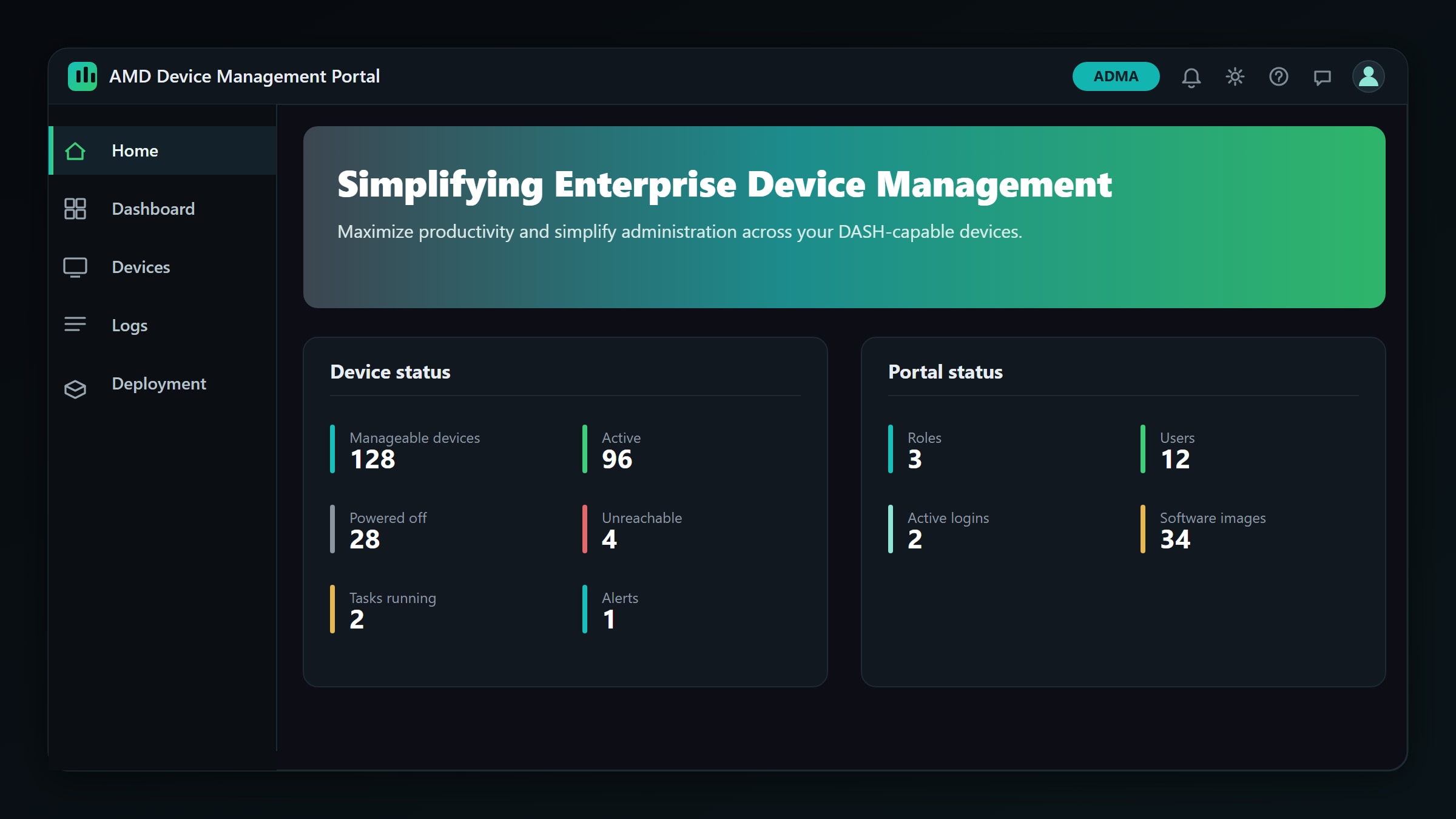
If you've been running the AMD Device Management Portal (ADMP), version 4.0 is the release where it grows up as an enterprise application. The core manageability engine you already know—DASH-based discovery, remote power and boot control, KVM, redirection, health, software upgrades—is unchanged and still accurate. What 4.0 adds is everything around that engine: how people sign in, how the portal connects to the rest of your management stack, and how it takes care of itself over time.
Here's the guided tour of what's new.
1. Enterprise Sign-In: Active Directory, OIDC SSO and Break-Glass Recovery
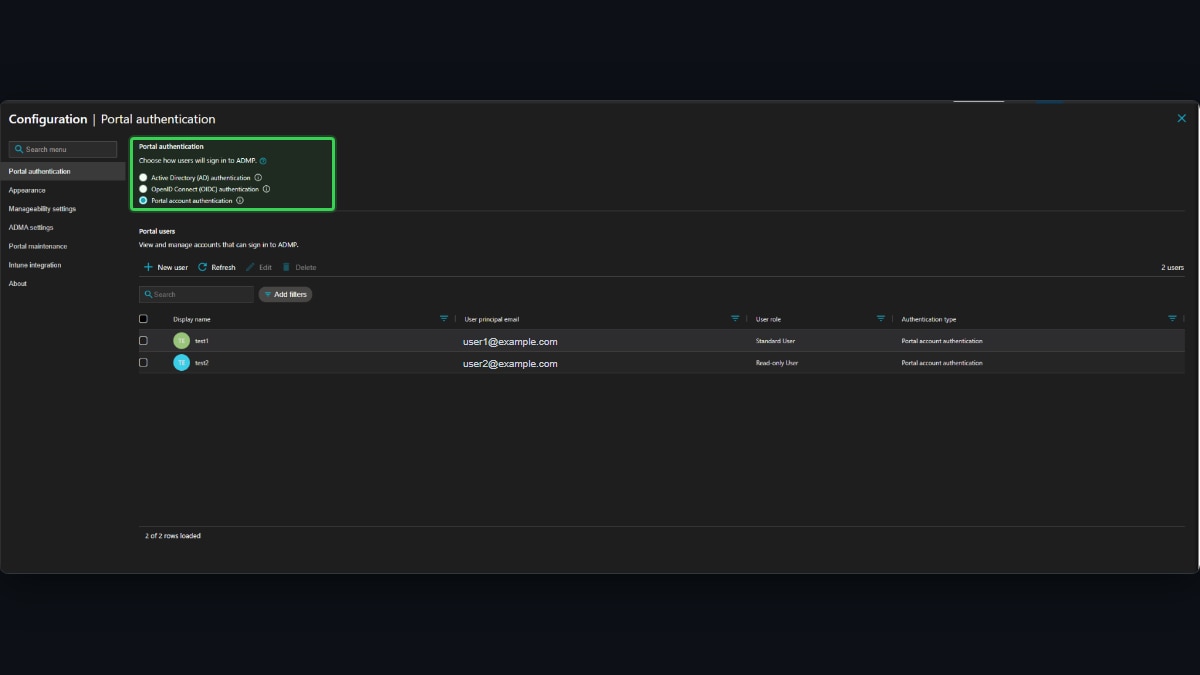
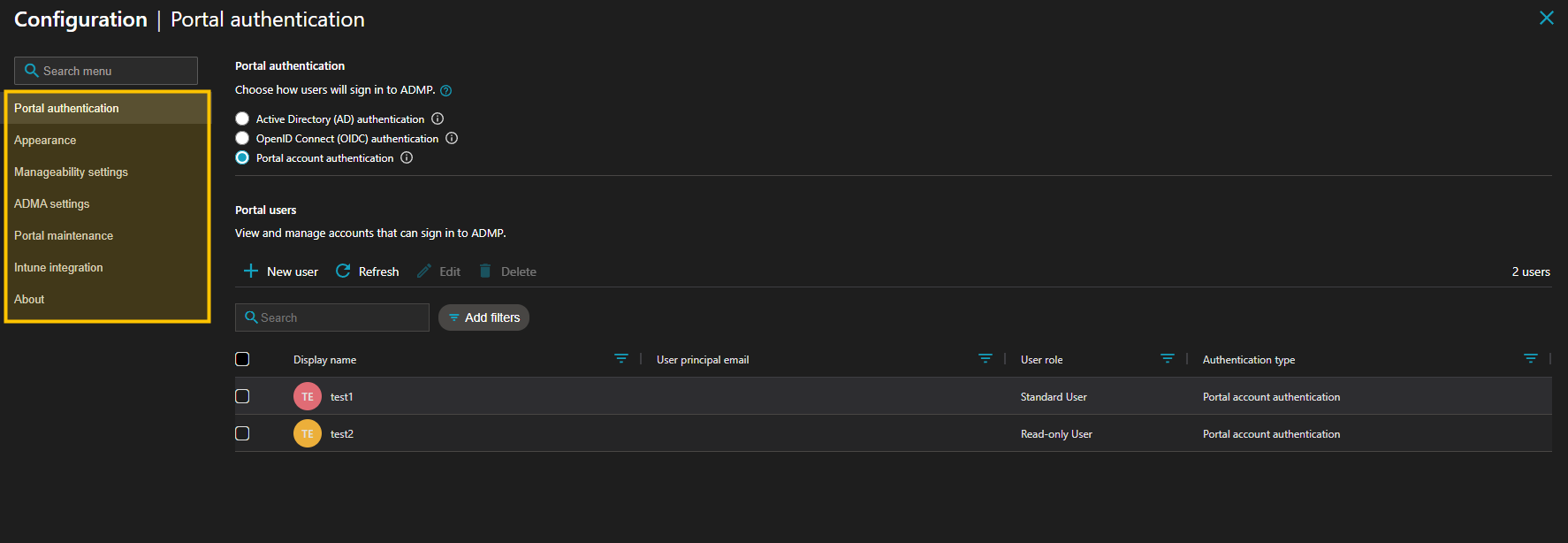
In earlier versions, ADMP had a single username-and-password login. Version 4.0 turns that into a full Portal authentication layer with three independently configurable sign-in methods:
Authentication method | How users sign in |
Active Directory (AD) authentication | Domain-joined users sign in with their existing Windows / AD session; no separate password prompt |
OpenID Connect (OIDC) authentication | Users authenticate through your identity provider—Microsoft Entra ID, Okta, or another OpenID Connect (OIDC)-compatible identity provider |
Portal account authentication | The classic local ADMP account, managed under Portal users |
Two supporting pieces make this genuinely enterprise-grade:
Role assignment via IdP groups. For AD and OIDC logins, a user's ADMP role (Admin / Standard / Read-Only) comes from a security group in your identity provider. Create a group per role, add users, and map it once in ADMP. If a user is not in any of the mapped groups, ADMP returns Unauthorized—access is deny-by-default.
Administrator Recovery (Break-Glass). A dedicated recovery page at <https://<admp-server>>/ui/recovery lets a local admin sign in and fix things when SSO breaks — a misconfigured provider, an unreachable IdP, or a bad group mapping. For safety it's reachable only from the server itself (localhost) and accepts only a local admin account, so a broken external identity provider can never lock you out permanently.
2. Microsoft Intune Integration
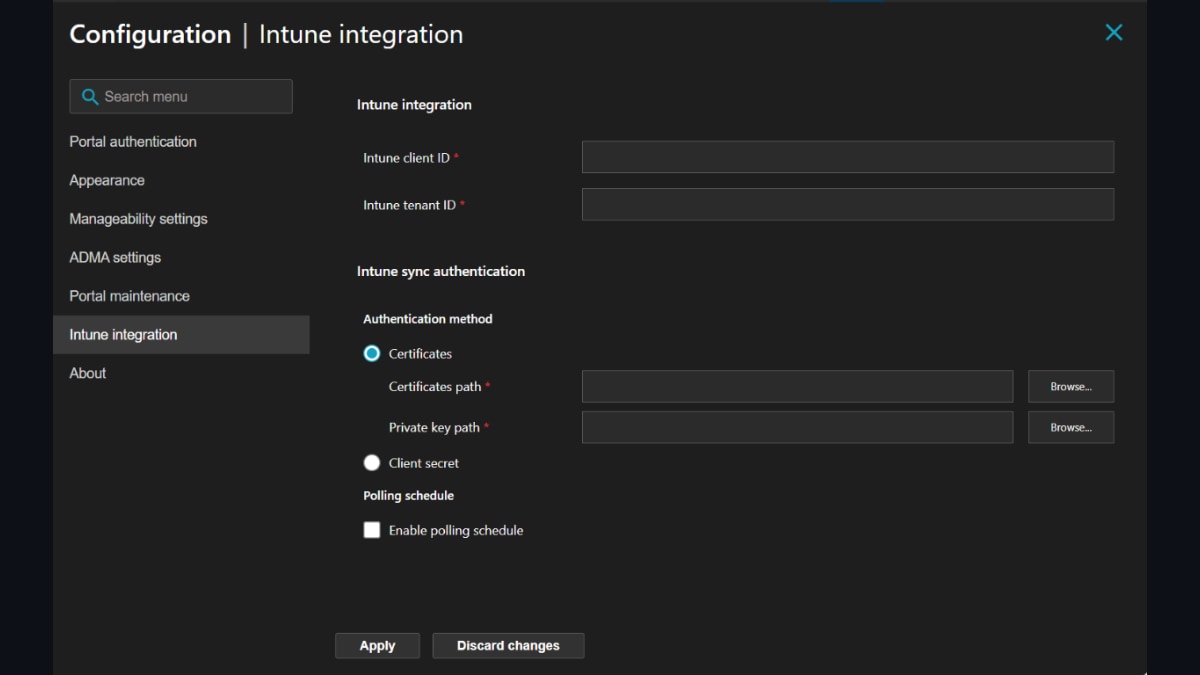
ADMP 4.0 adds an Intune configuration page that connects the portal to Microsoft Intune. You provide your Intune client ID and tenant ID, choose an authentication method (certificate-based or client secret), and if you want hands-off syncing, enable a polling schedule with a start date, start time, and recurrence pattern.
For teams already running Intune as their MDM, this means ADMP's hardware-level, out-of-band manageability lines up with the cloud management estate you already operate.
3. Power Scheduler
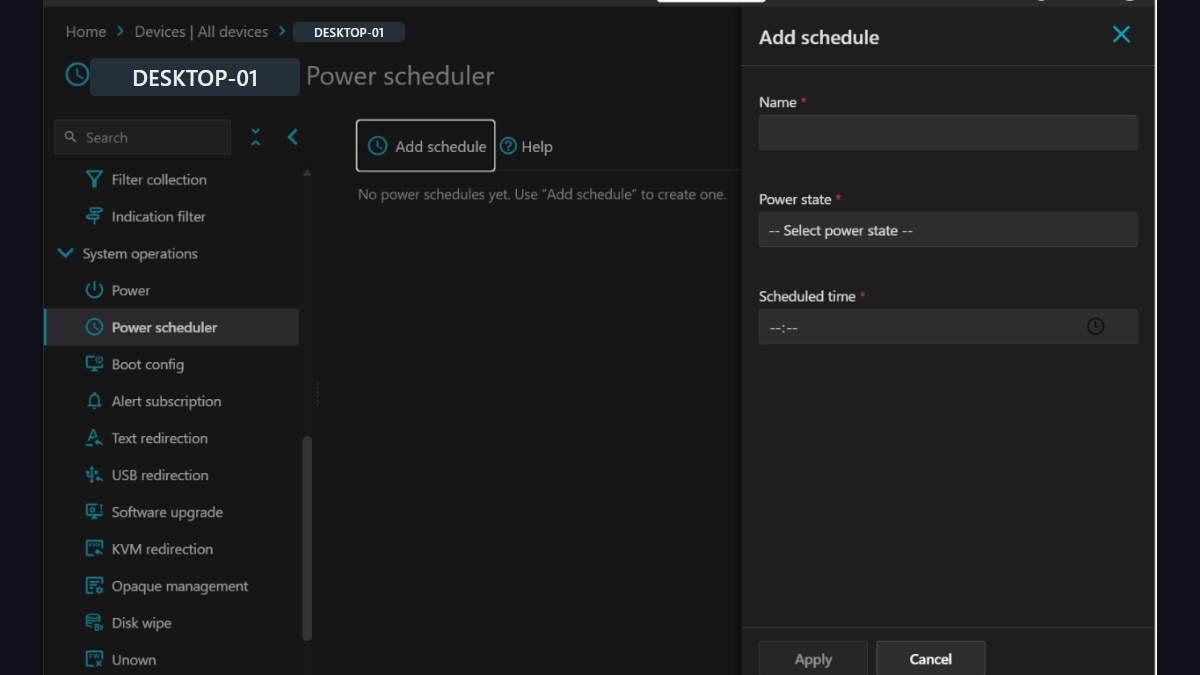
New under System operations, Power Scheduler lets you create recurring daily power operations on a managed device—up to three schedules per device, each firing at a configured start time. Set a name, pick the power state, choose the time, and apply. Each schedule simply repeats a chosen power operation at a set daily time.
4. A Consolidated Settings Area
4.0 reorganizes portal administration into a single Configuration area with a searchable menu: Portal authentication, Appearance, Manageability settings, ADMA settings, Portal maintenance, Intune integration, and About. A role-access change comes with it: in 4.0, the Admin role has full access to every settings page and can change anything including Manageability settings, which in earlier versions was a Standard-role-only surface. (Standard users still configure Manageability settings and ADMA to run the devices, the Portal authentication, Portal users, and Portal maintenance stay out of their reach.)
The Portal maintenance page brings together three tools that already existed in 3.0 (where they lived under Portal Settings → Maintenance)—Export data (export the portal data to a downloadable file), Import data (import from a version-matched script file), and Maintenance (auto-clear activity logs older than One Month, Three Months, Six Months, or One Year).
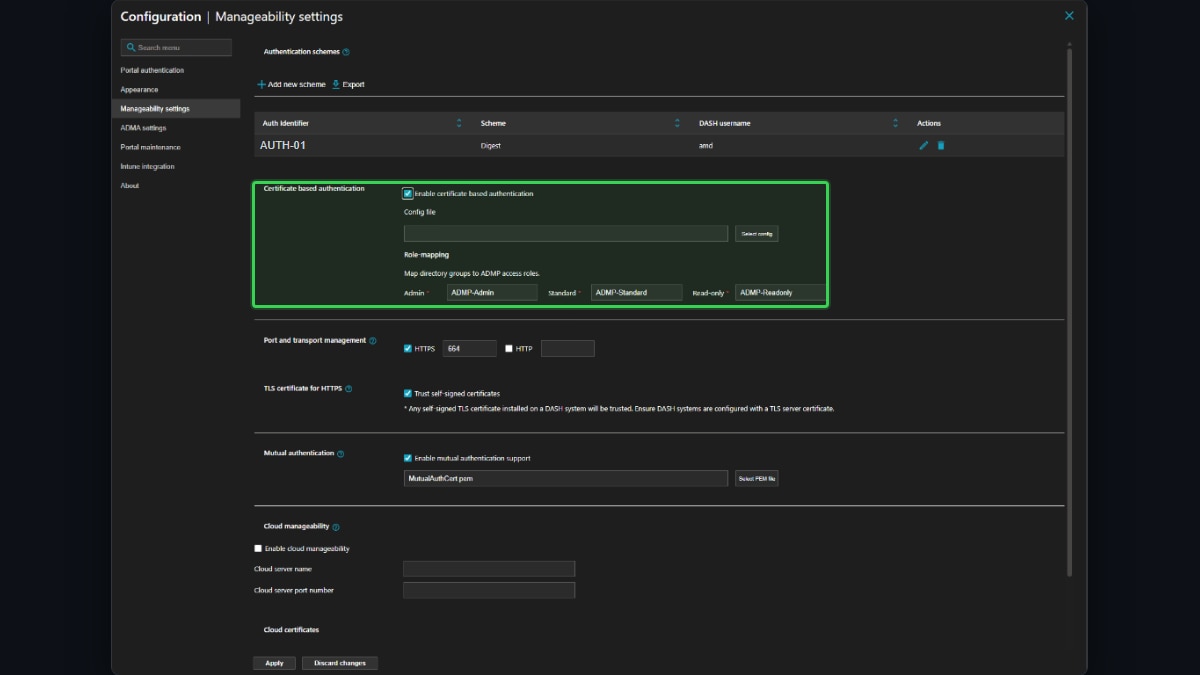
🆕 Certificate-Based Authentication in Manageability Settings
Also new in 4.0, Manageability settings adds certificate-based authentication alongside the existing per-device credential schemes. Select Enable certificate-based authentication, supply a config file (via Select config), then complete the Admin / Standard / Read-only directory-group → role mappings shown beneath the checkbox. Those mappings bind directory groups to device-access roles and are separate from the Digest / Active Directory credentials in the schemes table—a certificate-driven way for the portal to prove itself to managed devices.
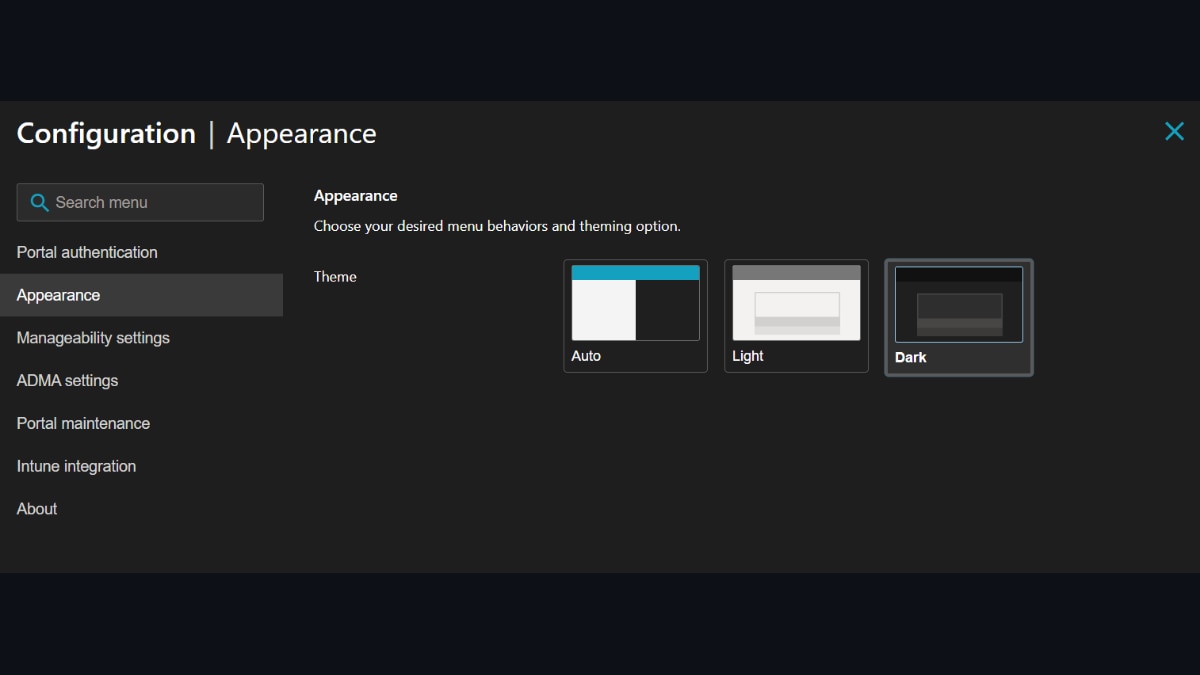
5. Appearance and Themes
A small but welcome touch: the new Appearance page lets you set the portal Theme to Auto, Light, or Dark. Pick a card, click Apply.
6. Organize Devices Automatically: By Platform
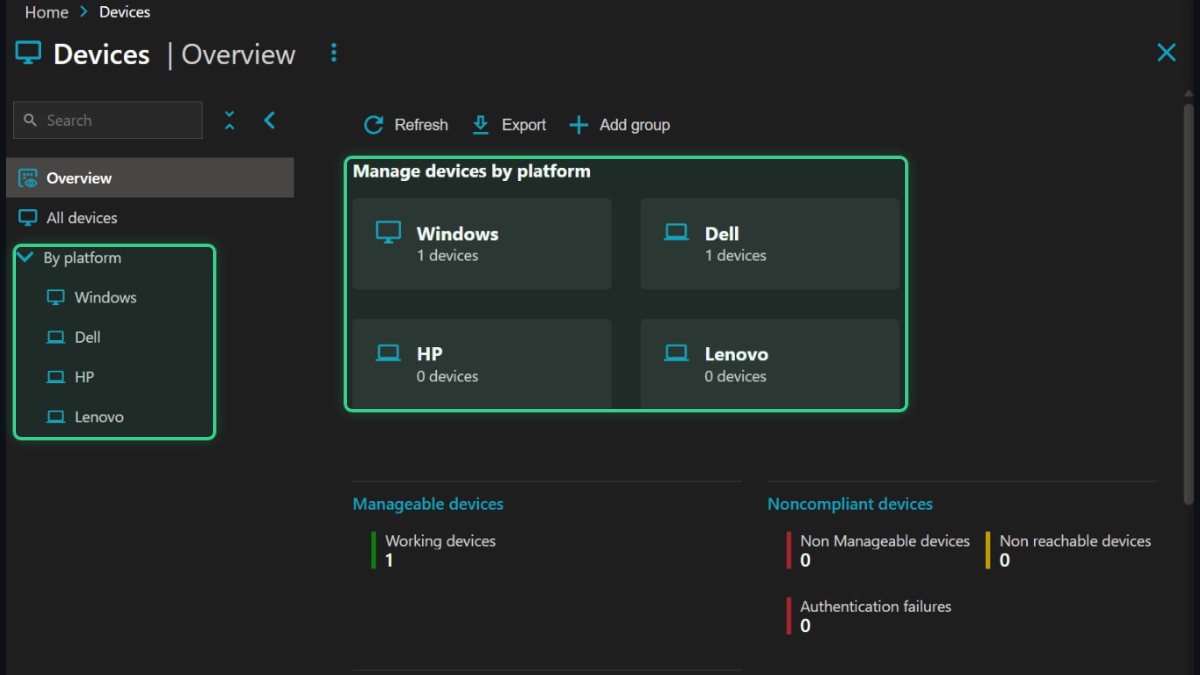
Alongside the manual groups you build yourself, 4.0 adds a second, automatic way to slice your managed devices. In the Devices view, the left navigation now reads Overview → All devices → By group → By platform:
By group: the groups you create and populate (as before).
By platform: new in 4.0 and self-populating. ADMP automatically sorts discovered devices by their detected platform—Windows, Dell, HP, Lenovo—with no setup on your part. Discover a device and it lands under the right platform on its own.
It's the quickest way to answer "show me just the Dell machines" (or only the Windows ones) without building and maintaining a group by hand.
7. One New ADMA Control: A Floating Icon
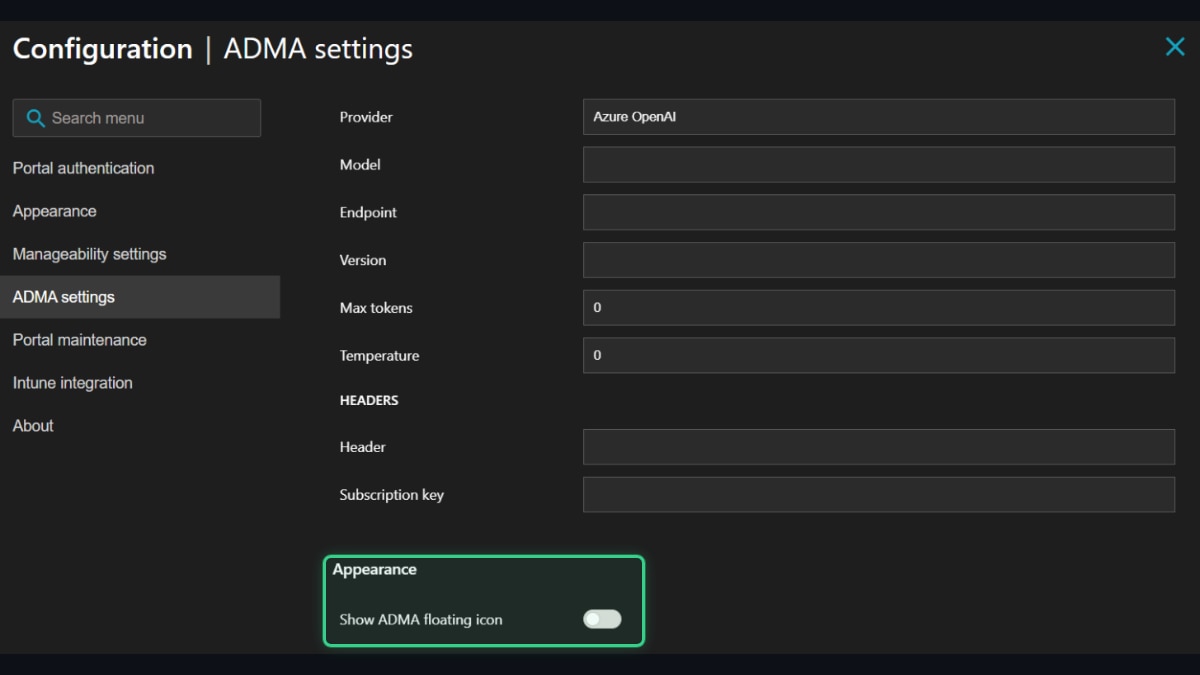
Under Models you could already set Provider, Model, Endpoint, Version, Max Tokens, Temperature, and under Headers a Header and Subscription key. All of that carries over unchanged.
What 4.0 actually adds is a single new control:
Appearance → Show ADMA Floating Icon—a toggle that keeps the assistant one click away from anywhere in the portal or hides it for a cleaner view.
The orchestration capabilities themselves (natural-language, multi-step, across many devices at once) are unchanged, and so is the model configuration. The floating-icon toggle is the one genuinely new piece.
8. A guided Three-Step Setup
First-run setup is now a clean three-step wizard: Step 1: Database creation, Step 2: Admin user, Step 3: Login setup where you choose your authentication method up front. New sections also appear throughout Settings, and the documentation reorganizes the old "Software" area into a Deployment chapter and breaks Logs out into its own chapter.
9. Built-In Feedback and Bug Reporting
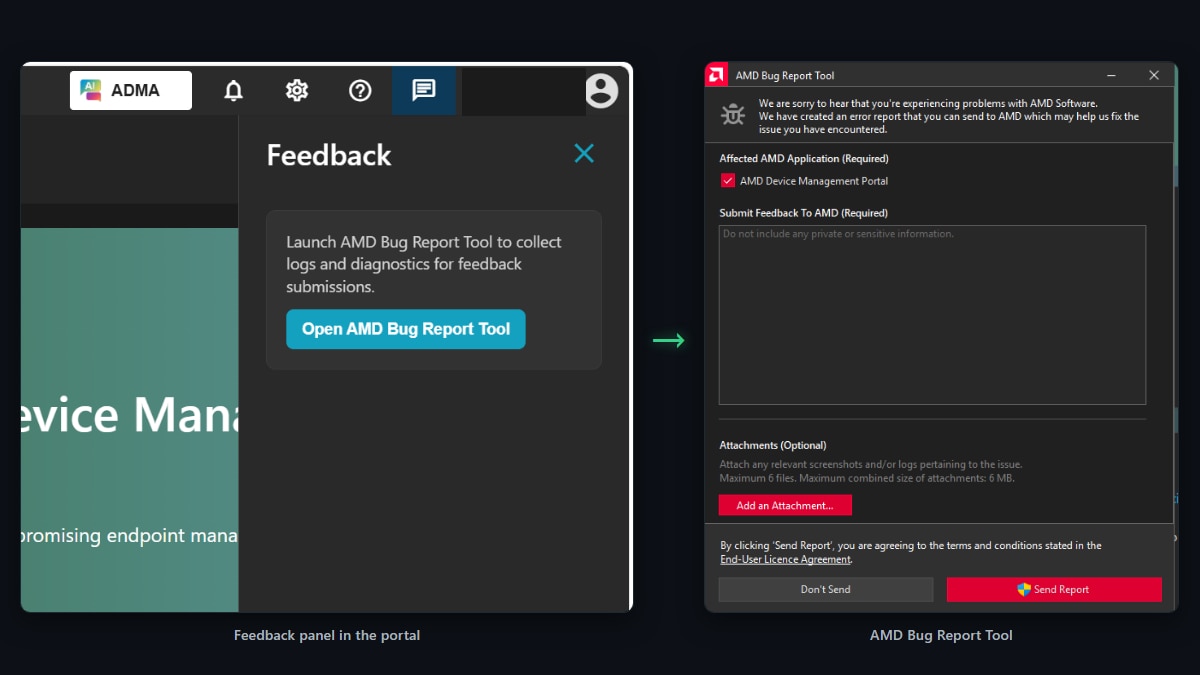
New in 4.0, the top navigation bar gains a Feedback item. Opening it shows a Feedback panel whose single action—Open AMD Bug Report Tool—launches the AMD Bug Report Tool to collect logs and diagnostics for your submission. The tool opens with AMD Device Management Portal already selected as the affected application; add your description, optionally Add an Attachment (up to six files, 6 MB combined), and Send Report. The integration streamlines issue reporting by allowing users to launch the AMD Bug Report Tool directly from the portal.
What hasn't changed
If you're upgrading, your muscle memory still works. These are all the same in 4.0:
System requirements—Windows 11 or Windows Server 2019+, 4 GB RAM, 4 GB disk
Databases—SQLite (bundled), Microsoft SQL Server, PostgreSQL (TLS-secured)
The core feature set—Discovery (hostname / IP / TCP IP range / Active Directory), Power, Boot, KVM, Text & USB redirection, Health, Alerts, Inventory, Software library, Disk Wipe / Unown, and the Logs
Manageability authentication—up to five Digest / Active Directory entries.
Footnotes
Features and functionality described in this blog are based on AMD Device Management Portal 4.0 and may vary depending on system configuration, deployment environment, and user permissions. Refer to the official AMD documentation and release notes for complete setup, compatibility, support, and feature availability information.
Microsoft Entra ID is a trademark of the Microsoft group of companies. Okta is a trademark of Okta, Inc. Third-party trademarks are the property of their respective owners.

Contributors

Related Blogs
-
ADMP_4_0_Roles_Explained_Admin_Standard_Read_Only
Learn how to assign Admin, Standard, and Read-Only roles in ADMP 4.0 and build a secure least-privilege deployment from day one.
November 25, 2026
-
Beyond Counters: Instruction-Level GPU Hotspot Profiling with PC Sampling in ROCprofiler-SDK — ROCm Blogs
A hands-on guide to PC Sampling in ROCprofiler-SDK: find GPU kernel hotspots, diagnose stalls, and validate a real GEMM optimization.
November 25, 2026
-
Introducing xDiT for ComfyUI — ROCm Blogs
Learn how to set up xDiT for ComfyUI and generate images and videos on AMD GPUs with tested presets and a visual multi-GPU workflow.
November 24, 2026
-
Introducing the AMD Global Physical AI Behavioral Safety Challenge
Discover the AMD Global Physical AI Behavioral Safety Challenge, inviting developers to build AI models that help robots interact safely with people.
November 23, 2026
-
Train a Walking Robot with Genesis on AMD GPUs — ROCm Blogs
Learn how to run a robotics training example using Genesis and Quadrants on an AMD GPU
November 22, 2026
-
Feeding the Matrix Cores: Assembly FP4 GEMM Kernel Design on AMD Instinct™ MI455X GPUs — ROCm Blogs
Learn how to keep AMD Instinct MI455X matrix cores fed in FP4 GEMM with the right tile, the Tensor Data Mover, pre-shuffled operands and pipelining.
November 22, 2026
-
FlashInfer on ROCm 10.1: The FlashInfer API with Automatic Kernel Routing — ROCm Blogs
Explore the new attention and fused ops in FlashInfer on ROCm: the upstream API, with each call routed to optimized AITER or in-tree HIP kernels.
November 19, 2026
-
From a Text Prompt to a Playable 3D World: World Models, LLM NPCs, and RL on AMD Radeon™ Graphics — ROCm Blogs
Turn a text prompt into a playable 3D world on one AMD Radeon graphics card with ROCm software: a video world model, Gaussian splats, LLM-driven NPCs and an RL agent.
November 19, 2026