How to Run a One Trillion-Parameter LLM Locally: An AMD Ryzen™ AI Max+ Cluster Guide
Feb 25, 2026
1. Introduction
This blog post walks through how to build a small-scale distributed inference cluster using AMD’s Ryzen™ AI Max+ AI PC platform and run a one trillion-parameter class Large Language Model using llama.cpp RPC.
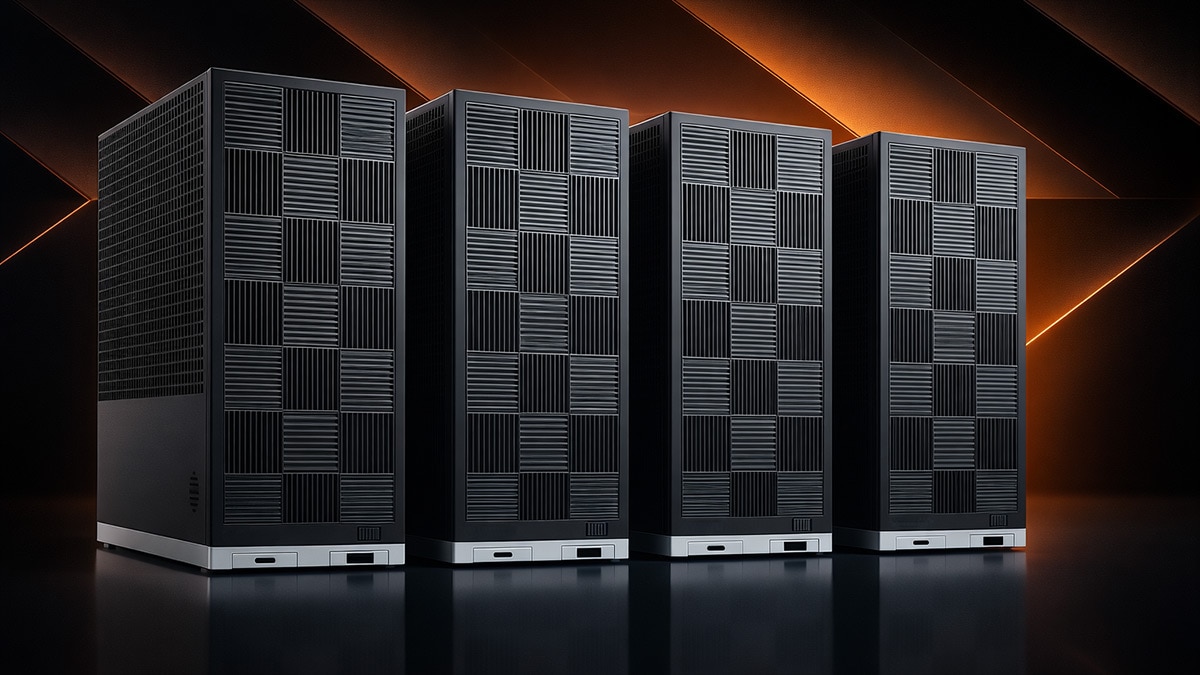
A four-node cluster of Framework Desktop systems is used to demonstrate distributed local inference of the state-of-the-art one trillion-parameter Kimi K2.5 open-source model.
Kimi K2.5 is Moonshot AI’s most advanced open reasoning model to date, positioned as a state-of-the-art open model for coding, long-horizon reasoning, and agent-style workflows. Kimi K2.5 is built to excel at software engineering tasks while also being natively multimodal, allowing it to reason over visual and video inputs in addition to text.
We will cover everything from system setup and driver configuration to building llama.cpp with ROCm support and finally orchestrating multi-node inference across four machines as if they were a single logical AI accelerator.
2. Setup Details
Hardware: |
4x Framework Desktop - AMD Ryzen™ AI Max+ 395 - 128GB |
AI Framework |
AMD ROCm™ |
Inference Engine: |
Llama.cpp RPC |
OS: |
Ubuntu 24.04.3 LTS |
Model: |
|
Network Interconnect |
5Gbps over Ethernet |
3. Technical Setup
The following steps should be followed for each Ryzen AI Max+ system.
3a. Extended VRAM allocation via TTM Modification
Note:
Set iGPU Memory Size to 512MB in BIOS before proceeding
For the Framework Desktop Ryzen AI Max+ 395 128GB configuration, the maximum amount of memory that is available to be set as dedicated VRAM in the system BIOS for each node is 96GB, equivalent to 384GB across four nodes.
However, in Linux we can make use of a Translation Table Manager (TTM) kernel parameter to increase our maximum VRAM allocation to 120GB per node, or a total of 480GB across four nodes. To configure our kernel parameters and reboot our system we can input the following commands into our terminal:
sudo nano /etc/default/grub
Find the line that starts with:
GRUB_CMDLINE_LINUX_DEFAULT=
Append the following parameters inside the quotes:
GRUB_CMDLINE_LINUX_DEFAULT="quiet splash ttm.pages_limit=30720000 amdgpu.gttsize=120000"
Save and exit (Ctrl+O, Enter, Ctrl+X).
		sudo update-grub
sudo reboot
Note:
TTM limits are expressed in 4 KB pages. To compute the value:
([size in GB] * 1024 * 1024) / 4.096
Example for 120 GB:
(120 * 1024 * 1024) / 4.096 = 30720000
Following our system reboot, we can verify the AMD GPU driver has been correctly configured with the 120GB memory allocation:
		$ sudo dmesg | grep "amdgpu.*memory"
[drm] amdgpu: 512M of VRAM memory ready
[drm] amdgpu: 120000M of GTT memory ready.
3b. Option 1: Recommended Setup (Lemonade SDK)
For the easiest setup experience, we recommend using the Lemonade SDK pre-built binaries.
The Lemonade SDK project provides nightly builds of llama.cpp with AMD ROCm™ 7 acceleration baked in, targeting GPUs such as gfx1151 (Strix Halo / Ryzen AI Max+ 395) and other recent Radeon architectures.
To install the Lemonade SDK pre-built binaries, navigate to the latest release page:
https://github.com/lemonade-sdk/llamacpp-rocm/releases/latest/
From the release assets, download the archive matching your platform and GPU target:
-
llama-bxxxx-ubuntu-rocm-gfx1151-x64.zip
Once downloaded, extract the archive and prepare the binaries:
		unzip llama-bxxxx-ubuntu-rocm-gfx1151-x64.zip
cd llama-bxxxx-ubuntu-rocm-gfx1151-x64
chmod +x llama-cli llama-server rpc-server
This directory now contains ROCm-enabled builds of llama-cli, llama-server, and rpc-server, precompiled for Ryzen AI Max+ systems.
To ensure llama.cpp is correctly configured to use our Radeon GPU we can execute the llama-cli binary
		$ ./llama-cli --list-devices
ggml_cuda_init: found 1 ROCm devices:
  Device 0: AMD Radeon Graphics, gfx1151 (0x1151), VMM: no, Wave Size: 32
Available devices:
ggml_backend_cuda_get_available_uma_memory: final available_memory_kb: 127697544
  ROCm0: AMD Radeon Graphics (120000 MiB, 124704 MiB free)
With llama.cpp prepared on each node you can proceed to Step 4. Inference Recipe to configure RPC endpoints and launch Kimi K2.5 across the cluster.
3c. Option 2: Manual Setup (Source Build)
1. How to install ROCm 7.0.2
Before you begin, you should confirm your kernel version matches the ROCm system requirements.
For more in-depth installation instructions, refer to ROCm on Linux detailed installation overview.
For Ubuntu 24.04.3 the installation of ROCm 7.0.2 is as follows:
ROCm installation
		wget https://repo.radeon.com/amdgpu-install/7.0.2/ubuntu/noble/amdgpu-install_7.0.2.70002-1_all.deb
sudo apt install ./amdgpu-install_7.0.2.70002-1_all.deb
sudo apt update
sudo apt install python3-setuptools python3-wheel
sudo usermod -a -G render,video $LOGNAME # Add the current user to the render and video groups
sudo apt install rocm

export PATH=$PATH:/opt/rocm-7.0.2/bin
export LD_LIBRARY_PATH=/opt/rocm-7.0.2/lib
To apply all settings, reboot your system.
After completing the installation, review the Post-installation instructions. If you have issues with your installation, see Troubleshooting
2. How to build Llama.cpp
Prerequisites:
Git
Cmake
We can clone and enter the llama.cpp repository via git as follows:
		git clone https://github.com/ggml-org/llama.cpp
cd llama.cpp
To build llama.cpp for our Ryzen AI Max 395+ systems we will use the following build commands:
		cmake -B rocm -DGGML_HIP=ON -DGGML_RPC=ON -DGGML_HIP_ROCWMMA_FATTN=ON -DAMDGPU_TARGETS="gfx1151"
cmake --build rocm --config Release -j$(nproc)
Notes:
-DGGML_HIP=ONenables the use of the ROCm software stack for use in llama.cpp-DGGML_RPC=ONenables RPC, the communication protocol used for distributed inference-DGGML_HIP_ROCWMMA_FATTN=ONenables the rocWMMA library for enhanced Flash Attention performance on AMD GPUs-DAMDGPU_TARGETS="gfx1151"specifies the Ryzen AI Max 395+ GPU, the Radeon 8060S, as the build target- For more in-depth parameter usage, refer to the llama.cpp build documentation
To ensure llama.cpp has been built and correctly configured with our Radeon GPU we can access the built binary directory and execute the llama-cli binary
		cd rocm/bin
$ ./llama-cli --list-devices
ggml_cuda_init: found 1 ROCm devices:
  Device 0: AMD Radeon Graphics, gfx1151 (0x1151), VMM: no, Wave Size: 32
Available devices:
ggml_backend_cuda_get_available_uma_memory: final available_memory_kb: 127697544
  ROCm0: AMD Radeon Graphics (120000 MiB, 124704 MiB free)
With llama.cpp prepared on each node you can proceed to Step 4. Inference Recipe to configure RPC endpoints and launch Kimi K2.5 across the cluster.
4. Inference Recipe
4a. How to start RPC endpoints on each machine
To treat our four machines like a single coordinated inference runtime, we use the llama.cpp RPC engine. RPC, or Remote Procedure Call, allows a single llama.cpp instance to offload parts of the model to remote workers over the network while maintaining a unified execution graph.
In practice, this means one machine acts as the primary controller. It is responsible for tokenization, scheduling, and orchestration. The remaining machines run lightweight RPC servers that expose their local GPU memory and compute resources to the controller. From the model’s perspective, layers can be placed on any available device, whether local or remote.
This design maps extremely well to Ryzen AI Max+ systems. Each node contributes a large pool of GPU-addressable memory and compute, and llama.cpp shards the model across nodes at load time. Once the model is loaded, inference proceeds as if it were running on a single, very large accelerator, with RPC handling tensor transfers and synchronization behind the scenes.
A simplified diagram of our network topology can be seen here:
Image Zoom

Create Endpoints on Remote Hosts (Machines 2-4)
To create RPC endpoints our host machine (Machine 1) can connect to, we must first execute the rpc-server binary on machines 2-4 as follows:
./rpc-server -p 50053 -c --host 0.0.0.0
Notes:
-pis the port we will set our machines to broadcast the RPC server on-cwill enable the use of a local cache to store large tensors and avoid repeated transfer over the network when loading models--hostis the IP we will set our machines to broadcast the RPC server on- For more in-depth parameter usage, refer to the llama.cpp rpc documentation
4b. Model Start Commands
With our remote RPC hosts enabled, we can begin inferencing our Kimi K2.5 LLM on our host machine (Machine 1) through two interfaces.
llama-cli
llama-cli provides a lightweight, terminal-based interface for interacting directly with the model. It is ideal for benchmarking, debugging, and low-level experimentation where you want full control over parameters and immediate feedback.
Because it runs entirely in the terminal, llama-cli has minimal overhead and makes it easy to observe startup time, prompt processing behavior, and token generation performance.
To start llama-cli with Kimi K2.5 we can run the following command:
		./llama-cli \
  -m /path/to/Kimi-K2.5-UD-Q2_K_XL-00001-of-00008.gguf \
  -c 32768 \
  -fa on \
  -ngl 999 \
  --no-mmap \
  --rpc <RPC_WORKER_1_IP>:50053,<RPC_WORKER_2_IP>:50053,<RPC_WORKER_3_IP>:50053
Notes:
-mspecifies the gguf model file path, Place the path to the downloaded Kimi K2.5 00001-of-00008.gguf file here
-cspecifies the context size, or the number of tokens a model can process and generate, a larger context size will incur more memory usage-fa onwill enable the specialized rocWMMA Flash Attention to increase performance, detailed results can be found in Step 5. Performance Optimization Parameter Tuning-nglspecifies the number of GPU layers, or the number of layers to store in VRAM, we can set this number to 999 to always ensure our model is fully offloaded onto the Radeon 8060S GPU--no-mmapwill disable memory-mapping the model, this significantly reduces model loading times when model sizes exceed system memory size but do not exceed VRAM limits--rpcallows us to input the remote host IPs and ports set in Step 4a. How to start RPC endpoints on each machine- For more in-depth parameter usage, refer to the llama.cpp cli documentation
llama-server
llama-server builds on the same inference engine as llama-cli but exposes it through a persistent server process. It includes an integrated web UI for interactive use and provides an OpenAI-compatible HTTP API for programmatic access.
This makes llama-server the preferred interface for longer-running deployments, multi-user access, and integration with external tooling. The built-in web UI is useful for quick testing and demonstrations, while the API layer enables integration with chat frontends, agent frameworks, and workflow automation tools.
To start llama-server with Kimi K2.5 we can run the following command:
		./llama-server \
  -m /path/to/Kimi-K2.5-UD-Q2_K_XL-00001-of-00008.gguf \
  -c 32768 \
  -fa on \
  -ngl 999 \
  --no-mmap \
  --host 0.0.0.0 \
  --port 8081 \
  --rpc <RPC_WORKER_1_IP>:50053,<RPC_WORKER_2_IP>:50053,<RPC_WORKER_3_IP>:50053
Notes:
-
-mspecifies the gguf model file path, Place the path to the downloaded Kimi K2.5 00001-of-00008.gguf file here -
-cspecifies the context size, or the number of tokens a model can process and generate, a larger context size will incur more memory usage -
-fa onwill enable the specialized rocWMMA Flash Attention to increase performance, detailed results can be found in Step 5. Performance Optimization Parameter Tuning -nglspecifies the number of GPU layers, or the number of layers to store in VRAM, we can set this number to 999 to always ensure our model is fully offloaded onto the Radeon 8060S GPU--no-mmapwill disable memory-mapping the model, this significantly reduces model loading times when model sizes exceed system memory size but do not exceed VRAM limits-
--hostis the IP we will set our host machine to broadcast the llama-server endpoint on --portis the port we will set our machines to broadcast the llama-server endpoint on--rpcallows us to input the remote host IPs and ports set in Step 4a. How to start RPC endpoints on each machine- For more in-depth parameter usage, refer to the llama.cpp server documentation
We can now access a web UI interface for our llama-server instance by navigating to the IP of the host machine and port specified.
4c. How to integrate with third party applications via OpenAI API
The llama-server instance exposes an OpenAI-compatible API, meaning it implements the same request and response schema used by OpenAI’s Chat Completions and Embeddings endpoints. This allows existing applications that were designed for OpenAI’s API to work with little to no modification.
From the client’s perspective, the only required changes are the base URL and the API key. The base URL is set to the address of your llama-server instance, and the API key can be any value since authentication is handled locally.
To enable use of the llama-server instance in third party OpenAI-compatible programs such as Open WebUI, you can simply point the application at your local server instead of an OpenAI endpoint.
In practice, that means:
Base URL: set to your llama-server address (for example, http://<HOST_IP>:8081)API key: set to any placeholder string e.g.none, since authentication is local
5. Performance Optimization Parameter Tuning
Flash Attention
The Attention mechanism is one of the core reasons Large Language Models like Kimi K2.5 can follow instructions, track context, and “stay on topic” over long prompts. At inference time, attention is also one of the most expensive operations in the entire forward pass.
As context length grows, attention becomes increasingly costly because the model must reference a continually expanding history of tokens. In practical terms, longer contexts amplify both compute and memory pressure, and attention can quickly become the throughput limiter during decoding.
Flash Attention is an optimized implementation of the transformer attention operation designed to reduce this bottleneck. Instead of materializing large intermediate matrices in memory and repeatedly reading and writing them, Flash Attention performs the computation in a more fused, block-wise way that significantly reduces memory traffic.
On the Ryzen AI Max+ 300 series, we enable Flash Attention through the rocWMMA-backed kernel path in llama.cpp. rocWMMA is a ROCm API that provides low-level access to AMD GPU matrix operations, allowing attent ion’s core math to run efficiently on the AMD Radeon 8060S RDNA 3.5 compute units.
rocWMMA Flash Attention can be enabled through the -DGGML_HIP_ROCWMMA_FATTN=ON build parameter, and including the -fa on parameter during model launch (as shown in Step 4b. Model Start Commands)
Measured performance impact
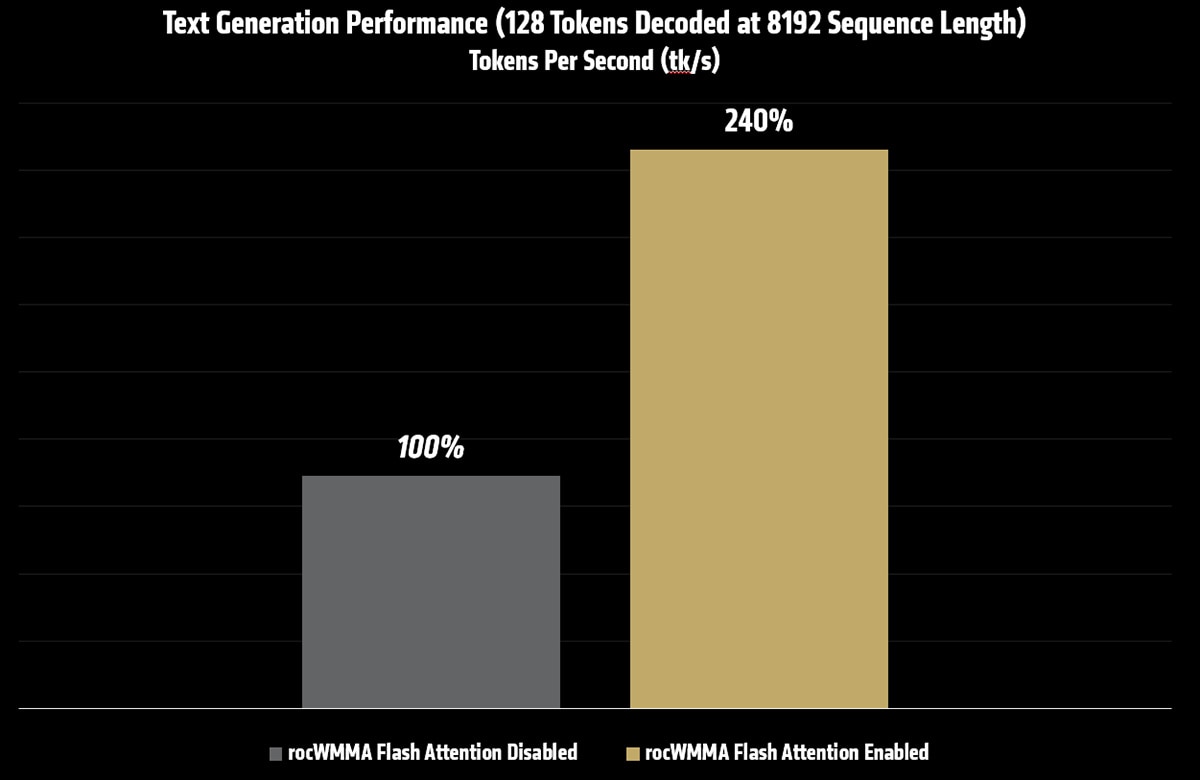
The table below shows text generation throughput for Kimi K2.5 at a sequence length of 8192, both with and without Flash Attention enabled.
Test |
Text Generation – Flash Attention Disabled |
Text Generation – Flash Attention Enabled |
128 Tokens Decoded |
8.81tk/s |
9.45tk/s |
128 Tokens Decoded at 8192 Sequence Length |
3.46tk/s |
8.30tk/s |
Batch & UBatch
Prompt processing time, often referred to as time to first token, is one of the most noticeable performance characteristics of a Large Language Model. Before a model can generate its first token, it must process the entire input prompt through all layers of the model. For long contexts, this stage dominates latency.
In llama.cpp, prompt processing performance is primarily controlled by two closely related parameters:
n_batch and n_ubatch
At a high level:
n_batchdefines the maximum number of tokens that the inference engine is allowed to process per step at the API level.n_ubatch(micro-batch) defines the maximum number of tokens that are actually processed per step on the device.
Measured performance impact
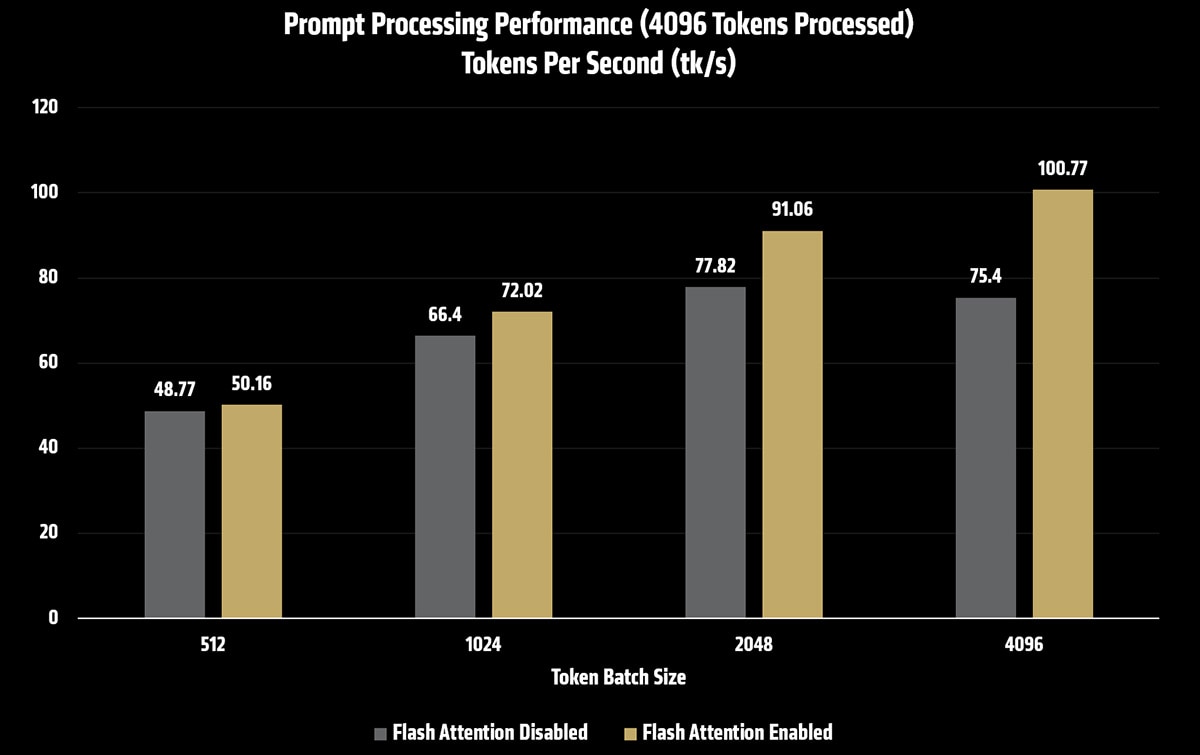
The table below shows prompt processing throughput for Kimi K2.5 under different batch and micro-batch configurations, both with and without Flash Attention enabled.
Batch & UBatch Size |
Prompt Processing (tk/s) – Flash Attention Disabled |
Prompt Processing (tk/s) – Flash Attention Enabled |
512 |
48.77 |
50.16 |
1024 |
66.40 |
72.02 |
2048 |
77.82 |
91.06 |
4096 |
75.40 |
100.77 |
Prompt Size (tokens) |
Time to First Token (s) - Flash Attention Disabled |
Time to First Token (s) - Flash Attention Enabled |
4096 |
53.7s |
39.7s |
8192 |
Out Of Memory (OOM) |
90.5s |
16384 |
Out Of Memory (OOM) |
239.1s |
Note: Time to First Token testing done with n_batch=4096 and n_ubatch=4096
As batch and micro-batch sizes increase, prompt processing throughput improves. When combined with rocWMMA Flash Attention, these gains compound, resulting in significantly faster time to first token for long-context prompts.
In this configuration, tuning n_batch and n_ubatch delivered up to a 2x improvement in prompt processing performance over baseline settings (FA disabled, batch&ubatch size 512), making large-context inference substantially more responsive and practical.
Note: Increasing n_batch and n_ubatch will increase memory footprint for model context size
6. Conclusion and Closing remarks
This walkthrough demonstrated that large-scale inference is no longer limited to traditional server-class GPUs or cloud-only deployments. By leveraging the unified memory architecture of AMD’s Ryzen AI Max+ platform and the flexibility of llama.cpp RPC, we are able to inference a one trillion-parameter state-of-the-art model across a small cluster of AI PCs as a single coordinated inference system.
Looking ahead, the core principles demonstrated here generalize well beyond (or below) a four-node Ryzen AI Max+ cluster; the number of nodes you need scales with the model’s VRAM requirements and workload demands.
Distributed local inference with open-source LLMs like the trillion-parameter parameter Kimi K2.5 deliver competitive AI outputs without recurring per-token charges while also keeping all data and computation under your control, addressing privacy and compliance needs that cloud offerings can’t always satisfy.
For many prototyping, research, and enterprise use cases, self-hosted clusters like this four-node Ryzen AI Max+ provide a cost-effective, privacy-preserving complement to paid cloud services, giving teams a place to exploreone trillion-parameter models, prototype distributed inference strategies, and validate workloads before scaling into larger cloud or production environments.


Related Blogs
-
Micro-World 2: Streaming Real-time Interactive World Model — ROCm Blogs
This blog demonstrates how Micro-World 2 combines precisely annotated action data, four-step diffusion distillation, and ROCm-optimized inference to deliver controllable, long-horizon, real-time world generation on a single AMD Instinct GPU through a fully open-source pipeline.
October 20, 2026
-
MoE Training Optimization with Primus — ROCm Blogs
Learn how to speed up MoE training on AMD Instinct GPUs with Primus: a fused MoE megakernel, FP8/MXFP8 expert GEMMs, and training-at-scale tuning.
October 20, 2026
-
Optimizing World Action Models on AMD GPUs — ROCm Blogs
Speed up World Action Models on AMD GPUs with GEAK kernels, fewer denoising steps, and latent actions, cutting FastWAM latency 25× at about 97 percent success.
October 20, 2026
-
EAGLE 4 on AMD Instinct GPUs
Discover how EAGLE-4 runs on AMD Instinct™ MI355X GPUs from day one with SGLang and ATOM.
October 20, 2026
-
RL inside World Models
Explore how failure-aware world model fine-tuning and improved PPO recipes make reinforcement learning more reliable, reproducible, and robust for robotic manipulation.
October 20, 2026
-
Introducing rocOpt: GPU-Accelerated Decision Optimization on AMD ROCm — ROCm Blogs
Run large-scale MILP, LP, QP, and vehicle routing problems on AMD Instinct GPUs - introducing rocopt, optimization built for ROCm.
October 19, 2026
-
Bringing Ultra-Fast, Interactive LLM Inference to AMD Instinct™ MI355X GPUs — ROCm Blogs
Accelerate single-request LLM inference on AMD Instinct MI355X with megakernels, speculative decoding, and MXFP4 for 1.9-3.3x faster decode.
October 19, 2026
-
Build a Private Cloud with AMD Ryzen AI Max
Enable GPU-accelerated VMs with AMD GPU passthrough, Proxmox VE and ROCm Software
October 19, 2026