MiniCPM-V 4.7 Gets Day 0 Support Across AMD Radeon GPUs, Ryzen AI integrated GPUs, and Ryzen AI NPU for On-device and Edge AI
Oct 14, 2026
At the open-source release of ModelBest’s latest multimodal model, MiniCPM-V 4.7, Day 0 support was already in place for AMD Radeon™ GPUs, the integrated GPU in Ryzen™ AI Max processors, and Ryzen AI NPU based on XDNA™ 2 architecture.
MiniCPM-V 4.7 is released in two variants, 1B and 35B-A3B, for on-device AI inference across AI PCs, automotive systems, robots, edge devices, and servers. Developers can select the model size and inference path that best fit their device resources, task requirements, and deployment conditions.
From Day 0 support on AMD Radeon GPUs, Ryzen AI Max integrated GPUs, to Ryzen AI NPUs for developers, AMD and ModelBest are working together to connect models, hardware, and development resources. This article covers functional validation and deployment on Radeon GPUs, along with progress on Ryzen AI NPU support and access to developer services.
GPU validation covers the Radeon AI PRO R9700, Radeon PRO W7900D, and the Ryzen AI Max 395 platform with Radeon 8060S graphics, spanning both discrete GPUs and APUs. These tests use an image containing a title and quota rules to check whether the model can read the image and generate responses consistent with its content.
Device |
GPU architecture or target |
1B |
35B-A3B |
Radeon AI PRO R9700 |
RDNA 4/ |
Pass |
Pass |
Radeon PRO W7900D |
RDNA 3/ |
Pass |
Pass |
Radeon 8060S / Ryzen AI Max 395 |
gfx1151 APU |
Pass |
Pass |
All above combinations completed inference successfully. Runtime logs confirmed that both the language model and visual projector used the AMD ROCm™ software backend, and model outputs matched the test image. These results establish that both model variants can perform image and text inference on the listed devices under the tested configurations. This validation focuses on functional correctness; throughput, time to first token, and GPU memory usage have not yet been reported in this blog.
GPU Deployment with ROCm and llama.cpp HIP Backend
Image and text inference requires loading a language model GGUF file and its matching visual projector GGUF file. The visual component encodes and projects images into representations that the language model can process. Model file paths are specified through environment variables, making it easy to switch model variants and reuse the build.
The following commands are intended for Ubuntu/Debian-based Linux environments with ROCm installed. Run them in order in the same Bash session. All subsequent build, inference, and server commands are run from the llama.cpp source directory.
1. Check the ROCm Environment
		rocminfo | grep -E 'Name:[[:space:]]+gfx' | sort -u
rocm-smi --showproductname --showmeminfo vram
Select the GPU target for your device and verify it against the actual rocminfo output. Use gfx1201 for the Radeon AI PRO R9700, gfx1100 for the Radeon PRO W7900D, and gfx1151 for the Radeon 8060S / Ryzen AI Max 395.
2. Get the Source Code and Build the llama.cpp HIP Backend
Install the build tools and fetch a pinned source revision into a new working directory. The next step uses gfx1201 as the build target. For other devices, replace GPU_TARGET with the appropriate value.
		sudo apt-get update
sudo apt-get install -y build-essential cmake git

git init llama.cpp
cd llama.cpp
git remote add origin https://github.com/tc-mb/llama.cpp.git
git fetch --depth 1 origin 6b31908189524f2f98824a38e09a553ea43cbd21
git checkout --detach FETCH_HEAD
GPU_TARGET=gfx1201
BUILD_DIR="build-$GPU_TARGET"
HIPCXX="$(hipconfig -l)/clang" \
HIP_PATH="$(hipconfig -R)" \
cmake -S . -B "$BUILD_DIR" \
    -DGGML_HIP=ON \
    -DGPU_TARGETS="$GPU_TARGET" \
    -DGGML_NATIVE=OFF \
    -DLLAMA_CURL=OFF \
    -DLLAMA_BUILD_SERVER=ON \
    -DLLAMA_BUILD_TESTS=OFF \
    -DCMAKE_BUILD_TYPE=Release

cmake --build "$BUILD_DIR" \
    --target llama-mtmd-cli llama-server \
    --config Release \
    --parallel 16
GGML_HIP=ON enables the HIP backend, and GPU_TARGETS specifies the target architecture. The build produces llama-mtmd-cli for image and text inference and llama-server for serving the model.
3. Prepare the Model and Input Image
Download the language model GGUF and matching visual projector for the selected variant, then specify their paths through environment variables. When switching variants, update both the language model and its matching projector.
		export MODEL_GGUF="/absolute/path/to/model.gguf"
export MMPROJ_GGUF="/absolute/path/to/matching-mmproj.gguf"
export IMAGE_FILE="/absolute/path/to/input.png"
Check the Inputs and Set the Runtime Directory
Run a single image and text inference request using the prepared model, visual projector, and input image.
		: "${MODEL_GGUF:?set MODEL_GGUF to the released language-model GGUF}"
: "${MMPROJ_GGUF:?set MMPROJ_GGUF to the matching visual projector}"
: "${IMAGE_FILE:?set IMAGE_FILE to an input image}"

BIN="$PWD/$BUILD_DIR/bin"
export LD_LIBRARY_PATH="$BIN${LD_LIBRARY_PATH:+:$LD_LIBRARY_PATH}"
"$BIN/llama-mtmd-cli" \
        -m "$MODEL_GGUF" \
        --mmproj "$MMPROJ_GGUF" \
        --image "$IMAGE_FILE" \
        --prompt 'Please describe the main content of the image.' \
        --jinja \
        -c 4096 \
        -n 192 \
        --temp 0 \
        -ngl 999
This example sets the context length to 4,096 tokens, generates up to 192 tokens, and uses -ngl 999 to request that as many language model layers as possible be offloaded to the GPU. Check the logs to confirm the actual offloading behavior. For the test image used in this article, you can also use a more specific prompt, such as “Please read the title in the image and explain each quota rule.”
During validation, check that both the language model and visual projector use the ROCm backend, and that the title, numbers, and rules in the response match the image.
4. Start the Image and Text Inference Service
After validating inference from the command line, start the server in the same session using the same model files.
		"$BIN/llama-server" \
    -m "$MODEL_GGUF" \
    --mmproj "$MMPROJ_GGUF" \
    --host 0.0.0.0 \
    --port 8080 \
    --jinja \
    -c 4096 \
    -np 1 \
    -ngl 999
Once the server is running, applications can submit messages containing text and image_url through an OpenAI-compatible API. Images can be passed as Base64 data URLs. To validate the service, use the same test image to check the full request path, then verify the backend logs and the actual response again. This lets developers move from a single command-line inference request to integration with an application service.
NPU Support for AMD Ryzen AI Processors
Alongside the GPU path, the MiniCPM-V 4.7 release also includes Day 0 support for NPUs in AMD Ryzen AI processors, providing another deployment option for on-device multimodal applications.
Supported Platforms and Models
FastFlowLM, AMD’s NPU inference runtime, provides model support for this Day 0 release. Starting with v1.0.8, FastFlowLM supports MiniCPM-V-4.7-1B inference on Ryzen AI NPUs. Supported platforms are Ryzen AI PCs with XDNA 2 NPUs, including the AMD Ryzen AI Max, AMD Ryzen AI 400, and AMD Ryzen AI 300 series.
Inference Workflow and Deployment
FastFlowLM provides an interactive command-line interface and an OpenAI-compatible local HTTP service. The model tag is minicpm-v-4.7:1b. Its weights use Q4_K quantization in NPU2 format and include the language model file model.q4nx and visual weights file vision_weight.q4nx, totaling approximately 2.2 GB. The model can be loaded after running flm pull.
Inputs consist of text and images, and a single request can include multiple images. The default context length is 32K tokens, with a maximum of 256K tokens.
The following commands are intended for Windows and should be run in PowerShell.
1. Install FastFlowLM and Check the NPU
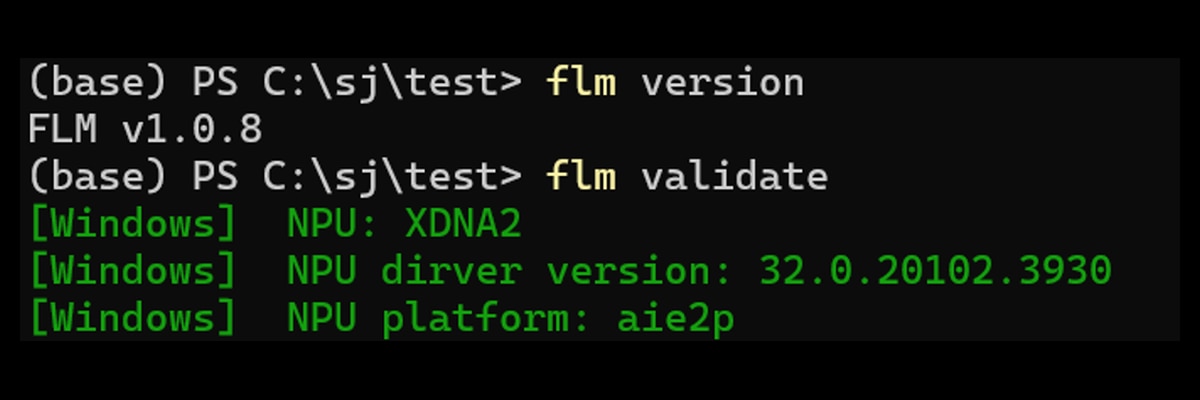
Install the Windows package from the FastFlowLM v1.0.8 release page. After installation, run:
		flm version
flm validate
flm version should report version 1.0.8 or later. flm validate should identify the NPU as XDNA2.
2. Download and Check the Model
		flm pull minicpm-v-4.7:1b
flm check minicpm-v-4.7:1b
To download from ModelScope, use:
flm pull minicpm-v-4.7:1b --modelscope
On Windows, weights are stored by default in %USERPROFILE%\.flm\models\MiniCPM-V-4.7-1B-NPU2. Model pages are available on Hugging Face and ModelScope (see the model links at the end of this article). flm check verifies that all model files are present and compatible with the current FastFlowLM version.
3. Run Image and Text Inference from the Command Line
		flm run minicpm-v-4.7:1b
/input C:\path\to\image.png Please describe the image.
Once in the session, use /input to provide the image path and prompt. A file path must follow /input. Use /think to toggle thinking mode, which is enabled by default, and /bye to exit the session.
4. Start the Image and Text Inference Service
flm serve minicpm-v-4.7:1b
The default port is 52625. Applications submit text and Base64 data URLs to /v1/chat/completions. In the following example, "think": false disables thinking, and temperature is set to 0:
		import base64
import json
import urllib.request

image_path = r"C:\path\to\image.png"
with open(image_path, "rb") as f:
    image = base64.b64encode(f.read()).decode("ascii")

body = {
    "model": "minicpm-v-4.7:1b",
    "temperature": 0,
    "max_tokens": 256,
    "think": False,
    "messages": [{
        "role": "user",
        "content": [
            {"type": "text", "text": "Please describe the image."},
            {"type": "image_url", "image_url": {"url": f"data:image/png;base64,{image}"}},
        ],
    }],
}
req = urllib.request.Request(
    "http://127.0.0.1:52625/v1/chat/completions",
    data=json.dumps(body).encode("utf-8"),
    headers={"Content-Type": "application/json"},
)
with urllib.request.urlopen(req, timeout=180) as resp:
    print(json.load(resp)["choices"][0]["message"]["content"])
Validation Results and Application Examples
This validation used an AMD Ryzen AI Max+ 395 system running Windows 11, FastFlowLM v1.0.8, and NPU driver version 32.0.20102.3930. Tests covered text conversations, image and text understanding, and inference performance at different context lengths.
Text Conversation Test
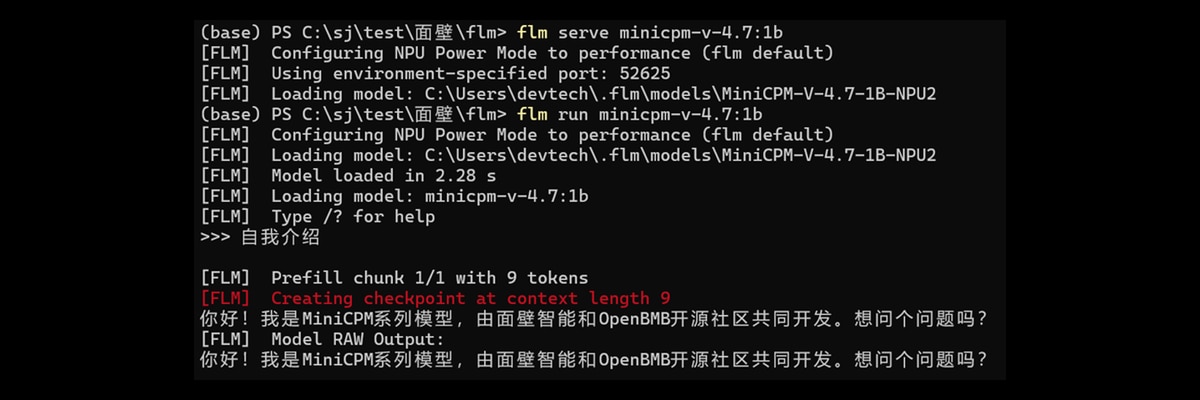
Image and Text Understanding Test
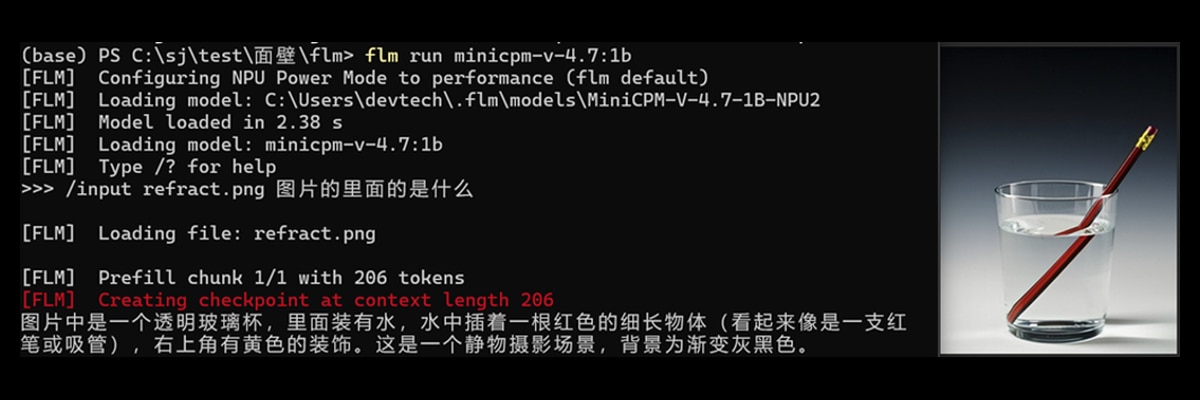
Inference performance at different context lengths

The model successfully introduced itself in the text conversation test. With the sample image, it correctly described the image content, with a time to first token of approximately 1.2 seconds for a single image. Decoding speed ranged from approximately 44 to 23 tokens/s for context lengths from 1K to 32K.
Join the AMD Developer Program and Start Building Multimodel AI Applications
Day 0 support for MiniCPM-V 4.7 on AMD GPUs and Ryzen AI Max NPUs gives developers a practical path from trying the model and validating applications to deploying on devices. GPU validation has covered multiple model and hardware combinations across different Radeon device types, with a deployment workflow spanning the build, single-request inference, and server startup.
Register for the AMD Developer Program today to access the following developer benefits.
Reference Links
- openbmb/MiniCPM-V-4.7-1B · Hugging Face
- openbmb/MiniCPM-V-4.7-35B-A3B · Hugging Face
- FastFlowLM · FastFlowLM
- FastFlowLM/MiniCPM-V-4.7-1B-NPU2 · Hugging Face
- modelscope.cn/models/amd/MiniCPM-V-4.7-1B-NPU2 - ModelScope
- AMD Developer Program
Acknowledgments
AMD team members who contributed to this work: Michelle Yu, Shouyu Du, Zhiheng Ni, Alfred Xu, Tao Wei, Adrian Macias, Jin Ran, Jian Song, Alex Yang, Joey Qiao, Fan Zhang, Krishna Sivakumar, Letian Kang, Vincent Fang, Bingqing Guo


Related Blogs
-
Device Memory Load Issue Stalls and Scheduling Opportunities in Lock-Stepped Kernels on AMD Instinct™ MI300X — ROCm Blogs
Diagnosing and reducing device-memory load issue stalls in lock-stepped kernels on AMD Instinct MI300X by interleaving compute.
November 01, 2026
-
How to Scale Diffusion Inference Across AMD RDNA 4 GPUs — ROCm Blogs
Run xDiT image and video diffusion workloads on multiple RDNA 4 GPUs with practical guidance for latency, memory, and scaling.
November 01, 2026
-
Two Waves, One Stage Apart: Warp-Pipelining Triton GEMMs on AMD Instinct — ROCm Blogs
Use warp-pipelining to overlap matrix work and data preparation in compute-bound Triton GEMMs on AMD Instinct GPUs.
October 26, 2026
-
Training EAGLE3 Speculative Decoding Draft Models on AMD Instinct MI350X with AMD Quark — ROCm Blogs
Learn how the AMD Quark team trains EAGLE3.1 draft models from scratch on AMD Instinct MI350X GPUs using ROCm, vLLM, TorchSpec, and SPEED-Bench.
October 26, 2026
-
Group-GEMM in XLA: Making Mixture-of-Experts Fast and Memory-Efficient — ROCm Blogs
Learn how to make JAX/MaxText MoE training more efficient with two new OpenXLA Group-GEMM backends for ragged-dot: ROCm hipBLASLt and generic Triton.
October 25, 2026
-
Scaling 3D Gaussian Splatting with Distributed Compute: Why One GPU Is Never Enough — ROCm Blogs
Learn how to scale 3D Gaussian splatting across GPUs with distributed training, RCCL, and real-world optimization tips for AMD Instinct GPUs
October 22, 2026
-
FP8 GEMM Optimization on AMD RDNA™ 4 Architecture — ROCm Blogs
Learn how to port an FP16 GEMM kernel to FP8 on AMD RDNA 4 and use the smaller element size to unlock larger tiles and deeper K slices.
October 22, 2026
-
Introducing rocOpt: GPU-Accelerated Decision Optimization on AMD ROCm — ROCm Blogs
Run large-scale MILP, LP, QP, and vehicle routing problems on AMD Instinct GPUs - introducing rocopt, optimization built for ROCm.
October 19, 2026