Deploying OpenHands Coding Agents on AMD Instinct GPUs
Jan 27, 2026

Coding Agents
Coding agents are AI agents capable of generating, analyzing, debugging, and documenting software artifacts either individually or in collaboration with developers. Agents are reshaping the landscape of software development by automating complex tasks, accelerating productivity, and enabling entirely new paradigms of generating software. OpenHands is a popular open-source coding agent that provides both a software agent for developers to collaborate with and a Software Agent SDK to aid developers in building their own coding agents.
In this blog, we demonstrate how to harness the power of AMD Instinct™ GPUs. You will learn how to deploy a state-of-the-art Qwen3-Coder model using the vLLM inference engine on the AMD Developer Cloud, and how to use the OpenHands SDK to build agentic workflows on your own managed infrastructure.
AMD AI Developer Program
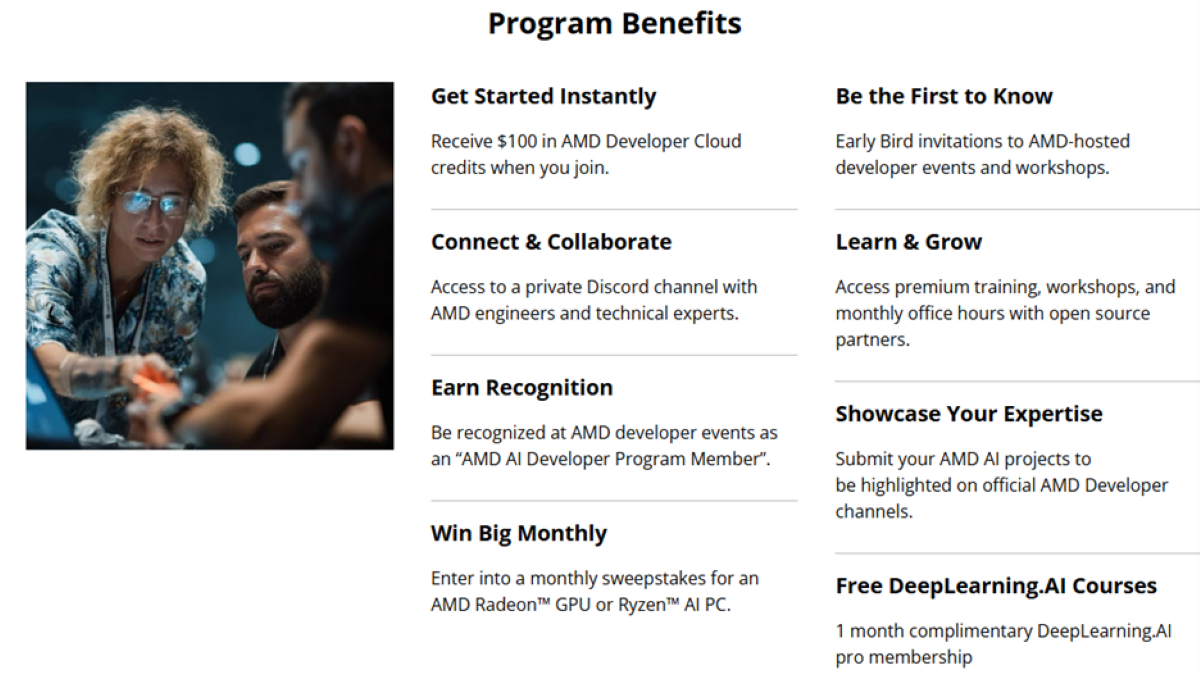
The workflow demonstrated in this blog is enabled by the AMD AI Developer Program, which provides compute infrastructure, tools, training, and more to support the community’s AI development. The benefits of the program are summarized in the figure below. Learn more and join today.
Getting Started with OpenHands on AMD Developer Cloud
The first thing we want to do is get a model running on the AMD Developer Cloud. We will use the vLLM inference engine on a single AMD Instinct™ MI300X GPU to run Qwen3-Coder-30B-A3B-Instruct.
- Sign up for the AMD AI Developer Program to receive $100 in AMD Developer Cloud Credits.
- Create an account on the AMD Developer Cloud via the DigitalOcean Control Panel.
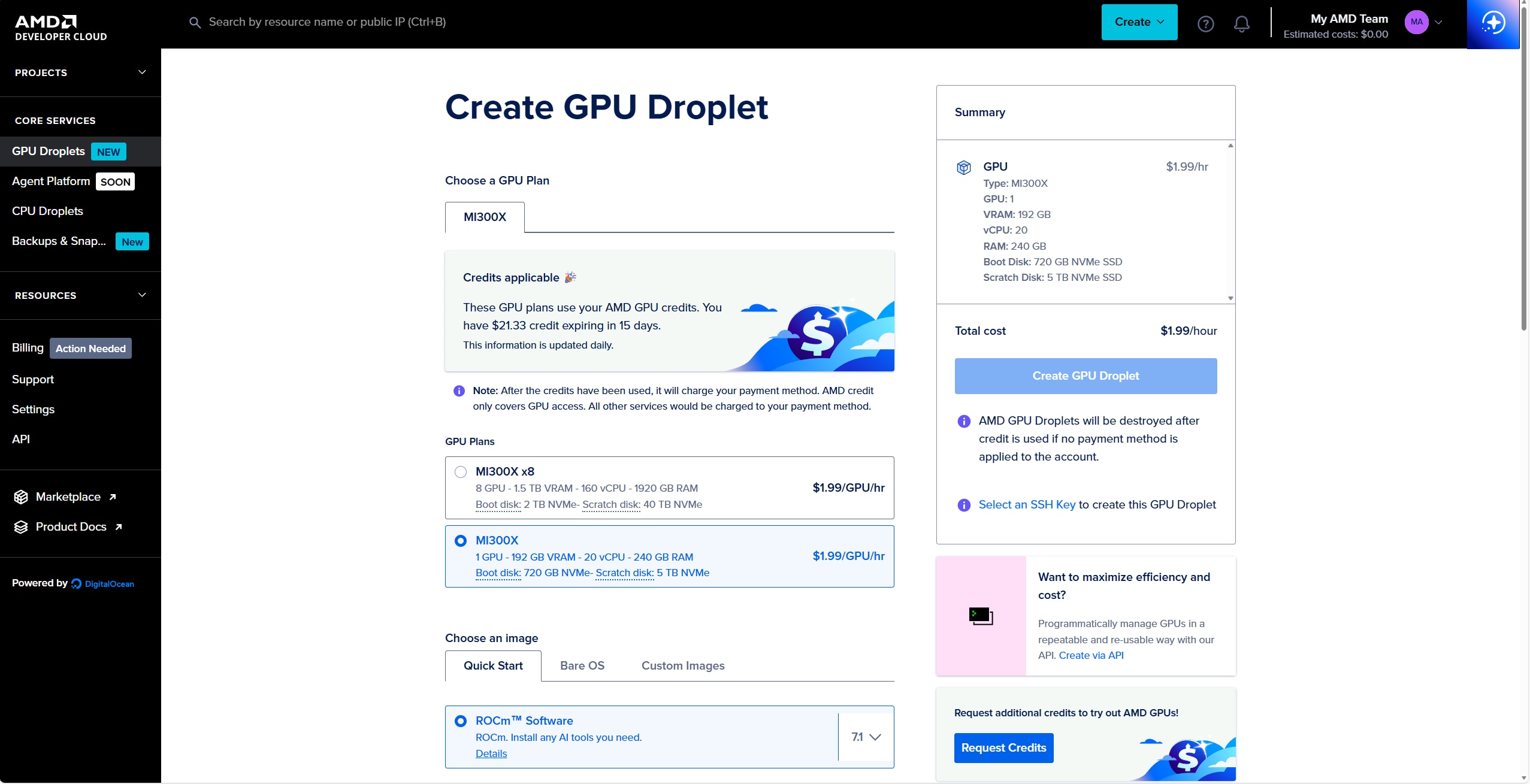
- Create a droplet with the AMD ROCm™ software package. For this workflow, a single MI300X GPU is more than sufficient for the Qwen3-Coder-30B-A3B model.
- Note: We are using the ROCm software package instead of the vLLM image so we can pull the latest vLLM image to ensure the latest models are supported.
Image Zoom
4. Once the droplet is created, the instance can be accessed via ssh. Note: The account that will be created will be of username root. To access the droplet, use:
ssh root@<ipv4-address>
Note: Make sure to upload your ssh key and add it to the droplet to allow access to the machine.
5. After logging into the machine, we must pull the vLLM docker container. These containers can be found in the rocm/vllm hub (rocm/vllm - Docker Image). Pull the latest rocm/vllm docker container with the command:
docker pull rocm/vllm:latest
Note: For models that are just released, it can be necessary to use the ROCm vLLM nightly builds. These can be found on the rocm/vllm-dev hub (rocm/vllm-dev - Docker Image) and can be pulled using the following command:
docker pull rocm/vllm-dev:nightly
6. Now that the image of the docker container has been pulled, we can run it. Run the following command to run the docker container:
docker run -it --rm --device=/dev/kfd --device=/dev/dri -p 8000:8000 --group-add video --shm-size 16G --security-opt seccomp=unconfined --security-opt apparmor=unconfined <docker-image-name> /bin/bash
7. Now you will be dropped into a shell in the docker container, run the following command to serve Qwen3-Coder-30B-A3B-Instruct using vLLM:
vllm serve Qwen/Qwen3-Coder-30B-A3B-Instruct --max-model-len 32000 --enable-auto-tool-choice --tool-call-parser qwen3_coder
8. To verify that the vLLM server is running, go to http://<ipv4-address>:8000/v1/models/ in your web browser. It should list all the models running on the server, which in our case is just Qwen3-Coder-30B-A3B-Instruct:
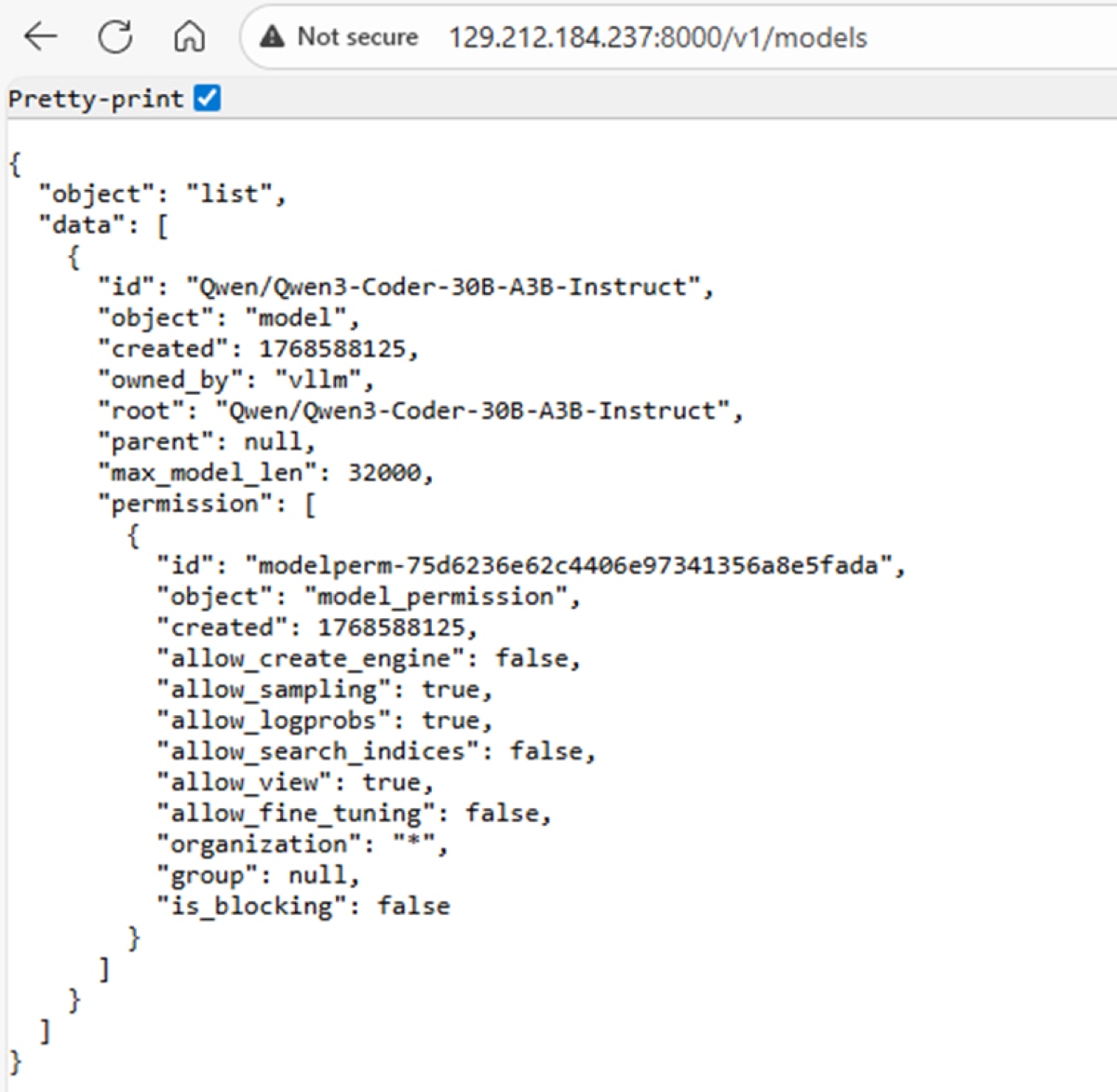
Note: we are using Qwen3-Coder-30B to leverage a single GPU. Depending on the complexity of the task provided to the agent, it might be necessary to use a larger model such as Qwen3-Coder-480B-A35B-Instruct. For these models, it is necessary to rent nodes of 8x GPUs. Nodes of 8x GPUs can also be rented through the AMD Developer Cloud, and vLLM recipes for how to launch models can be found at: vLLM Recipes.
Connecting the OpenHands Command Line Interface to your GPU Instance
Now that there is a vLLM inference engine running on the GPU instance, we can leverage that compute to run software agents on the GPU instance that we just created. First, let’s run the OpenHands Command Line interface and invoke the OpenHands coding agent to generate software:
- Follow the OpenHands documentation to launch the OpenHands CLI: OpenHands/OpenHands-CLI: Lightweight OpenHands CLI in a binary executable.
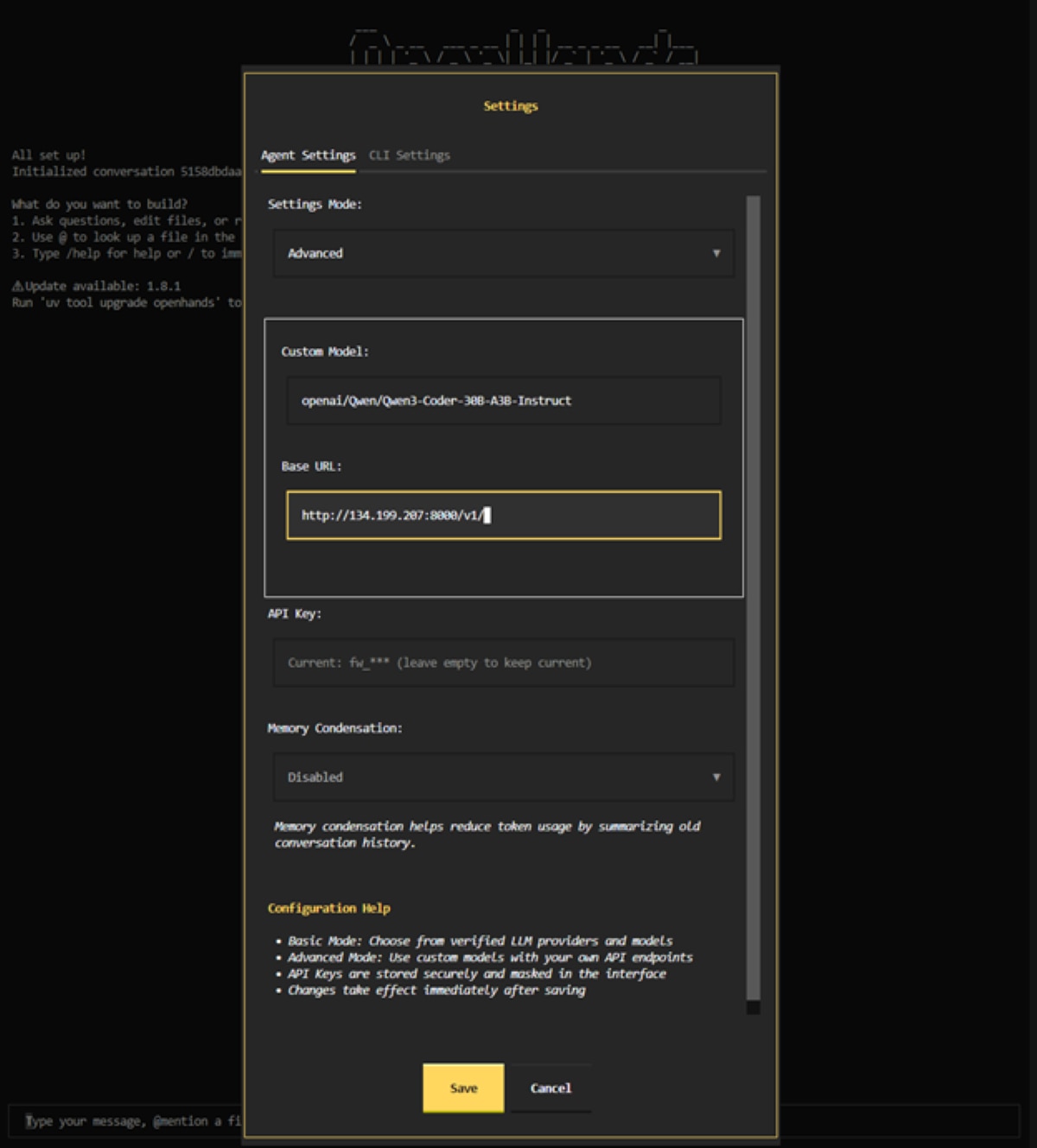
- The OpenHands CLI will first prompt to configure the settings for the provider. First, set the Settings Mode to “Advanced” as shown below. Then, use openai/Qwen/Qwen3-Coder-30B-A3B-Instruct as the model and http://<ipv4-address>:8000/v1/ as the Base URL. The API key can be set to anything as we didn’t set an API key on the vLLM instance.
Image Zoom
3. Start a new conversation and start having the OpenHands agent program for you through the CLI.
For example, we prompted the model to generate a pong arcade game with the prompt: “Create a pong arcade game using Pygame."
Developing Software Agents with OpenHands on your GPU instance
OpenHands also provides a Software Agent SDK, where developers can build bespoke software agents. Follow these steps to build an agent with the OpenHands Software Agent SDK
- Clone and build the OpenHands software-agent-sdk according to the documentation: OpenHands/software-agent-sdk: A clean, modular SDK for building AI agents with OpenHands V1.
- Write the following to a new file called fact-agent.py, which will create an agent to go through the current project and write 3 facts into a file called FACTS.txt:
		 import os

from openhands.sdk import LLM, Agent, Conversation, Tool
from openhands.tools.file_editor import FileEditorTool
from openhands.tools.task_tracker import TaskTrackerTool
from openhands.tools.terminal import TerminalTool

llm = LLM(
    model="openai/Qwen/Qwen3-Coder-30B-A3B-Instruct",
    api_key="no-key-needed",
    base_url=”http://<ipv4-address>:8000/v1/”
 )

agent = Agent(
    llm=llm,
    tools=[
        Tool(name=TerminalTool.name),
        Tool(name=FileEditorTool.name),
        Tool(name=TaskTrackerTool.name),
    ],
)

cwd = os.getcwd()
conversation = Conversation(agent=agent, workspace=cwd)

conversation.send_message("Write 3 facts about the current project into FACTS.txt.")
conversation.run()
print("All done!")
3. Check the newly created FACTS.txt to which will have 3 facts about the current project written.
This is a simple agent that you can create using the OpenHands agent SDK. We refer the reader to the examples in the software-agent-sdk repo with more examples of how to build custom agents using OpenHands: software-agent-sdk/examples/01_standalone_sdk at main · OpenHands/software-agent-sdk
Destroying your GPU instance
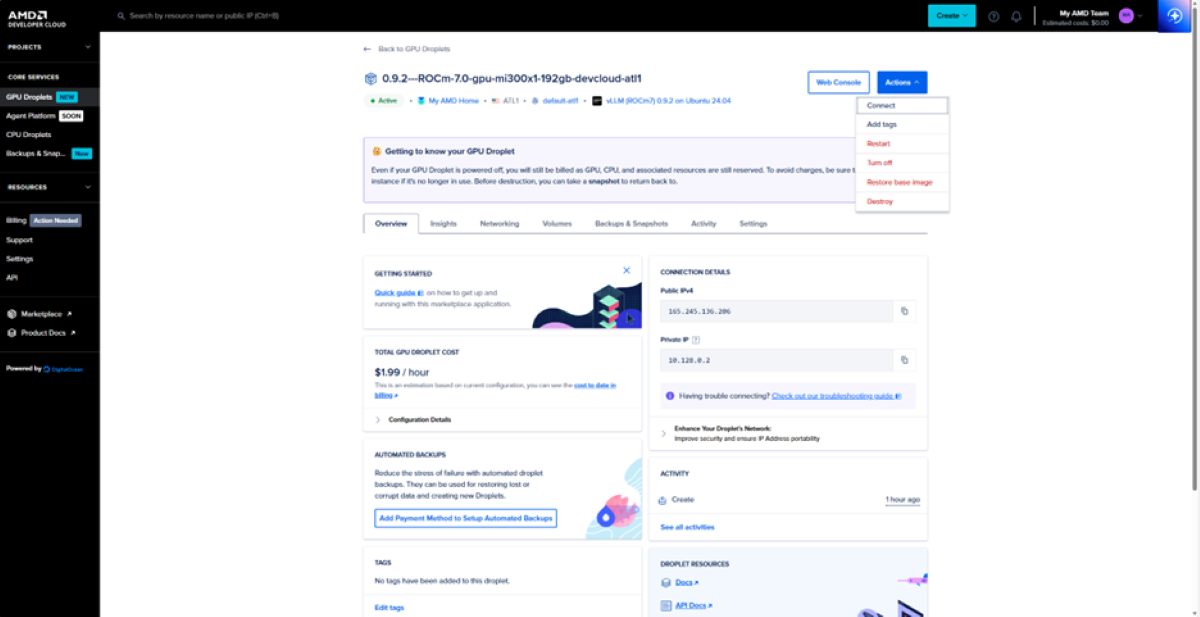
After you are done using the GPU instance, the instance must be deleted. Note that even if a GPU droplet is powered off, it will still be billed as the resources are still reserved. To delete the instance, go to “Actions” and click “Delete”. Snapshots can also be created to persist state across instances.
Image Zoom
Next Steps and Getting Engaged
This blog presents a complete workflow for deploying OpenHands coding agents on AMD Instinct™ GPUs, enabling developers to run, customize, and scale software agents on self-managed infrastructure.
With this foundation in place, the setup can be extended in several directions. Developers can build specialized agents using the OpenHands Agent SDK, integrate the OpenHands coding agent into existing development workflows to accelerate software creation, or focus on optimizing model throughput and latency to support faster, more responsive agents at scale.
We look forward to seeing what the community builds next. Projects, ideas, and feedback can be shared with other developers building on the AMD Developer Cloud through the AMD Developer Community Discord channel.
Collaboration with the OpenHands team and the broader community is also available via the OpenHands Slack.
Acknowledgements
A massive shoutout to the Robert Brennan, Ben Solari, Graham Neubig, Joe Pelletier, and Xingyao Wang for the collaboration and amazing technology that they have developed in OpenHands.

Related Blogs
-
Automating Performance Bottleneck Identification with the TraceLens Agent — ROCm Blogs
TraceLens Agent is an agentic workflow that examines GPU traces to deliver a prioritized optimization report, detailing root causes and fixes.
September 29, 2026
-
MORI CCO
MORI CCO enables compute-communication overlap on AMD Instinct™ GPUs. Build faster distributed inference and training kernels with device-side communication.
September 29, 2026
-
Unlocking Sim2Real for a Robotic Arm with RL Accelerated by AMD Instinct GPUs — ROCm Blogs
Train an XArm-6 pick-and-lift policy with PPO in MuJoCo Warp on AMD Instinct GPUs, then transfer it to the real robot.
September 28, 2026
-
How AMD Ryzen AI Max PRO 400 Series Processors Bring Local Agentic AI to Business Customers
See how AMD Ryzen AI Max PRO 400 Series processors bring local agentic AI to business with more memory, flexible deployment, and lower costs.
September 28, 2026
-
Verl 0.9.0 on ROCm™ 10.0: Next-Generation RL Post-Training on AMD Instinct™ GPUs — ROCm Blogs
Enable Verl 0.9.0 on ROCm™ 10. Native AMD platform support, vLLM 0.27 and SGLang in one image, and updated async GRPO/DAPO recipes on AMD Instinct™ GPUs.
September 27, 2026
-
UltraQuant on AMD Instinct: More Efficient Agentic Serving for Qwen3.8-MXFP4 — ROCm Blogs
A native 4-bit MXFP4 KV cache that speeds up Qwen3.8 decode over 8-bit KV on AMD Instinct MI355X, with no accuracy loss.
September 24, 2026
-
Local Quantization and Multi-Backend Deployment with AMD Quark on Strix Halo — ROCm Blogs
Quantize a 35B MoE model directly on AMD Strix Halo with AMD Quark, export to GGUF and safetensors, validate with llama.cpp and vLLM, and deploy through Lemonade.
September 24, 2026
-
Model Weight Profiles: Where Do the Parameters Go? — ROCm Blogs
Introduce Model Weight Profiles and compare embeddings, attention, and dense layers so checkpoint size and quantization savings make sense.
September 24, 2026