Run Hermes Agent Locally On AMD Ryzen™ AI Max+ Processors and Radeon™ GPUs
Apr 21, 2026

Download and install the latest AMD Software: Adrenalin Edition™ Drivers. If you are using an AMD Ryzen™ AI Max+ processor, set AMD Variable Graphics Memory to "High". Right click anywhere on desktop > AMD Software: Adrenalin Edition™ > Performance > Tuning > Variable Graphics Memory > Set to High and Restart
Hermes Agent by Nous Research is a major step forward for local, autonomous, AI agents. It is an incredibly powerful, fully autonomous AI agent with some serious capability behind it. It is optimized for local models and can take goals, break them down, work through steps, and drive execution in a way that feels advanced, capable, and undeniably next-generation. Hermes is what happens when autonomous AI moves beyond theory and starts delivering real-world impact.
AMD Agent Computers are designed for exactly this moment. This new category of always-on systems are built to run AI agents continuously across apps and tasks, so users can delegate work and let agents execute autonomously. This model depends on hardware capable of running AI locally and performantly. Systems powered by AMD Ryzen™ AI Max+ processors or Radeon™ AI PRO graphics are especially well suited for this category, with the horsepower for sophisticated local models and the architecture to support the parallel, multi-agent workloads that define agentic computing.
Running it locally on AMD Ryzen™ AI Max+ and Radeon™ AI PRO is fairly straightforward and grants you the control and immediacy that local execution makes possible. Hermes Agent brings the autonomy, AMD brings the hardware capability and LM Studio provides the path to get it running. Together, they create exactly what local AI should look like: fast, capable, privacy-focused, and full of potential. This is a powerful example of fully autonomous AI on AMD, and allows you to turn intent into action and start delegating your workflows to agents - all the while staying inside the familiar Windows ecosystem.
How to setup and run Hermes Agent on AMD Ryzen™ AI Max+ processors or Radeon™ graphics
Legal Disclaimer: Hermes is a highly autonomous AI agent. Giving any AI agent access to any system may result in the AI acting in unpredictable ways with unpredictable/unforeseen outcomes. Use of any AMD suggested implementations is made at your own risk. AMD makes no representations/warranties with your use of an AI agent as described herein. Failure to exercise appropriate caution may result in damages (foreseen and/or unforeseen)
This guide walks through the setup on AMD Ryzen™ AI Max+ processors and Radeon™ AI PRO graphics using WSL2 (Windows Subsystem for Linux) combined with LLMs served over LAN through LM Studio (to easily traverse the WSL2 boundary). Once set up, the conclusion is hard to miss: Hermes Agent is incredibly capable, local AI is advancing quickly and AMD builds for this.
Installing and configuring LM Studio
1. Download LM Studio
2. Start LM Studio and click on "Skip for now" for the model download prompt.
3. Check "Developer Mode" and "Start LLM service on login"
4. Click on the "Model Search" Icon represented by a Robot and a Magnifying glass
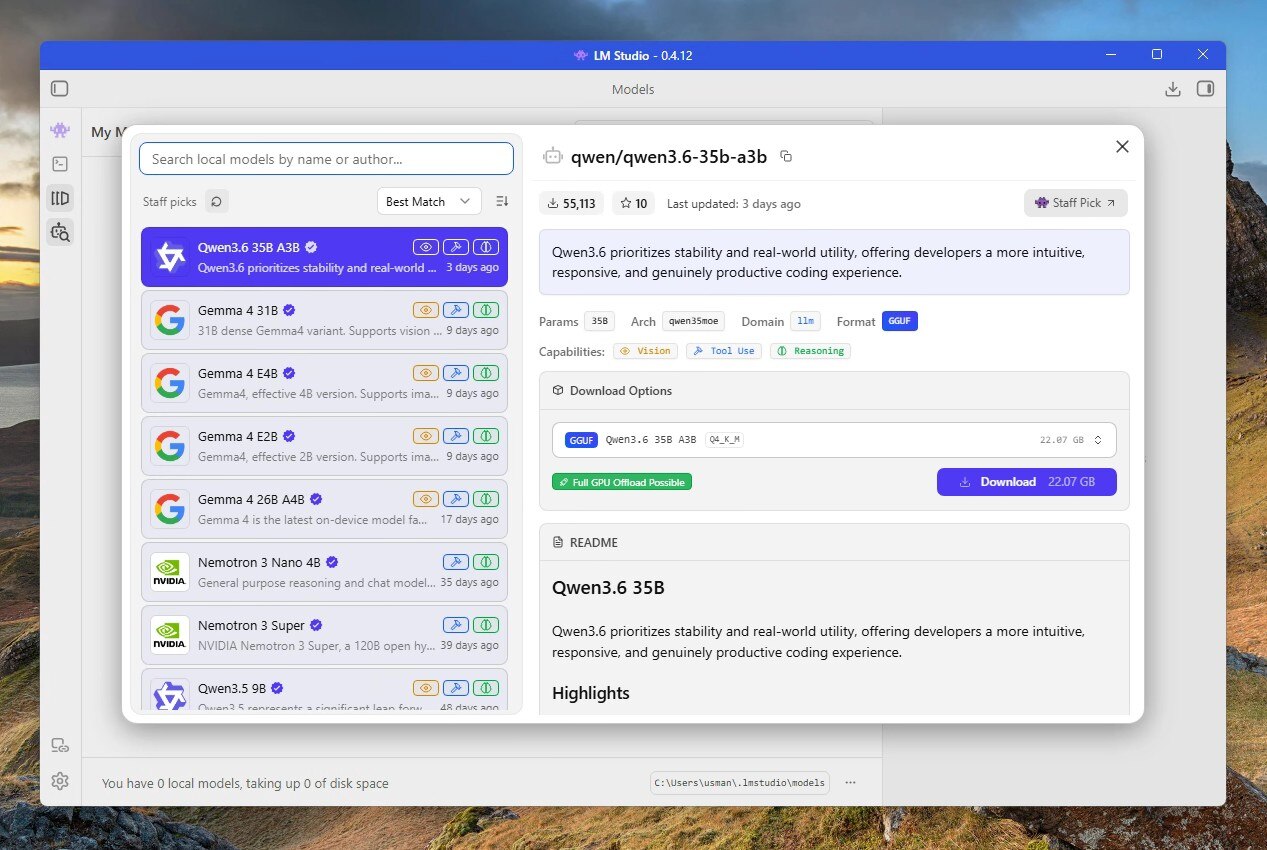
5. Select "Qwen3.6 35B A3B" on the left hand side and click download on the right hand side. Wait for it to finish downloading.
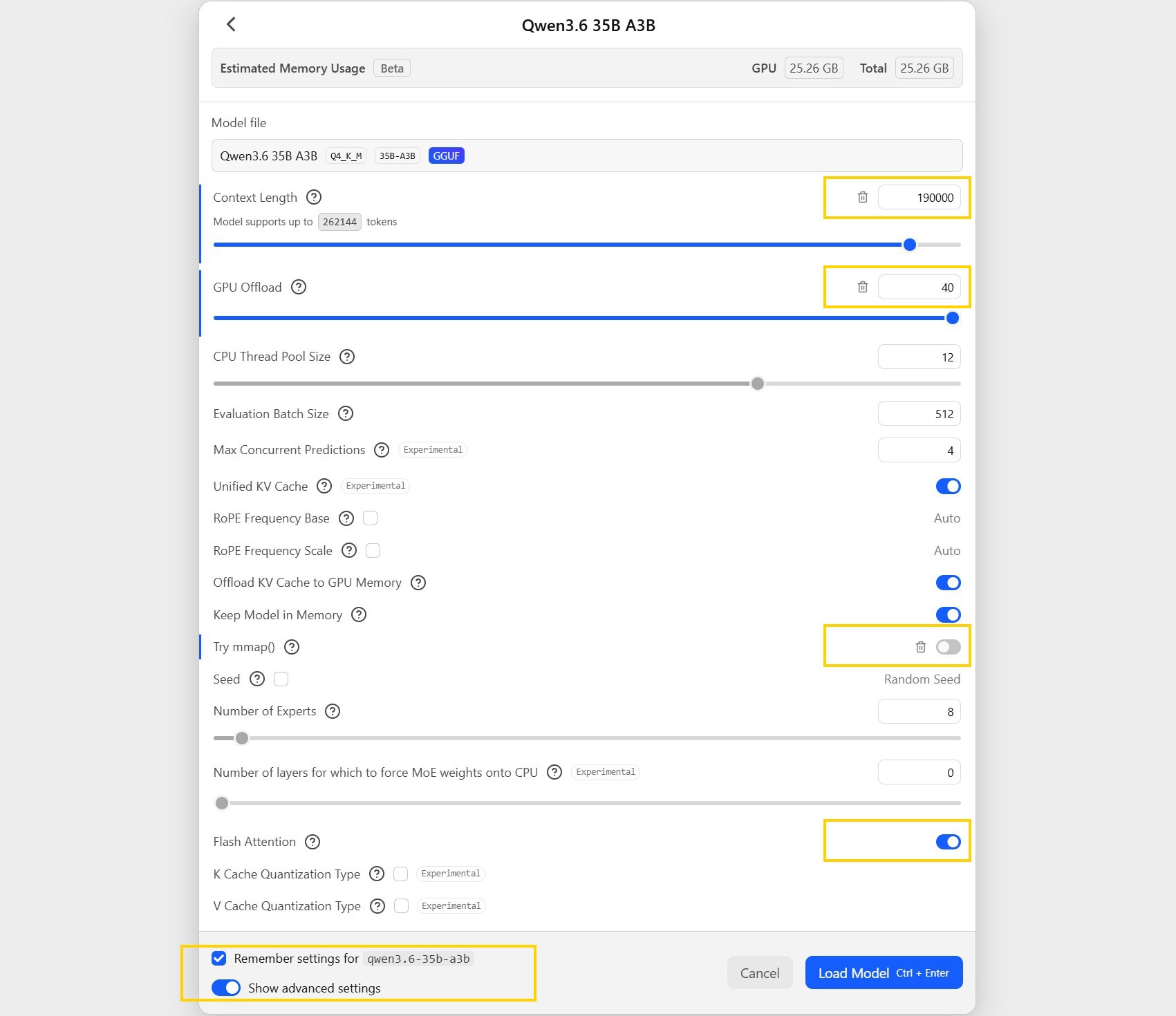
6. Click Ctrl + L to bring up model selection. Check "Manually choose load model parameters" and click on the LLM to bring up the load options. Check "remember settings" and check "show advanced settings".
7. Set the following settings: Context: 190000, GPU Offload: Max, Uncheck "Try mmap", Flash Attention: On, Remember settings: On.
8. Press Ctrl + 2 to take you to the developer tab.
9. Press the toggle infront of "Status: Stopped" to start the server.
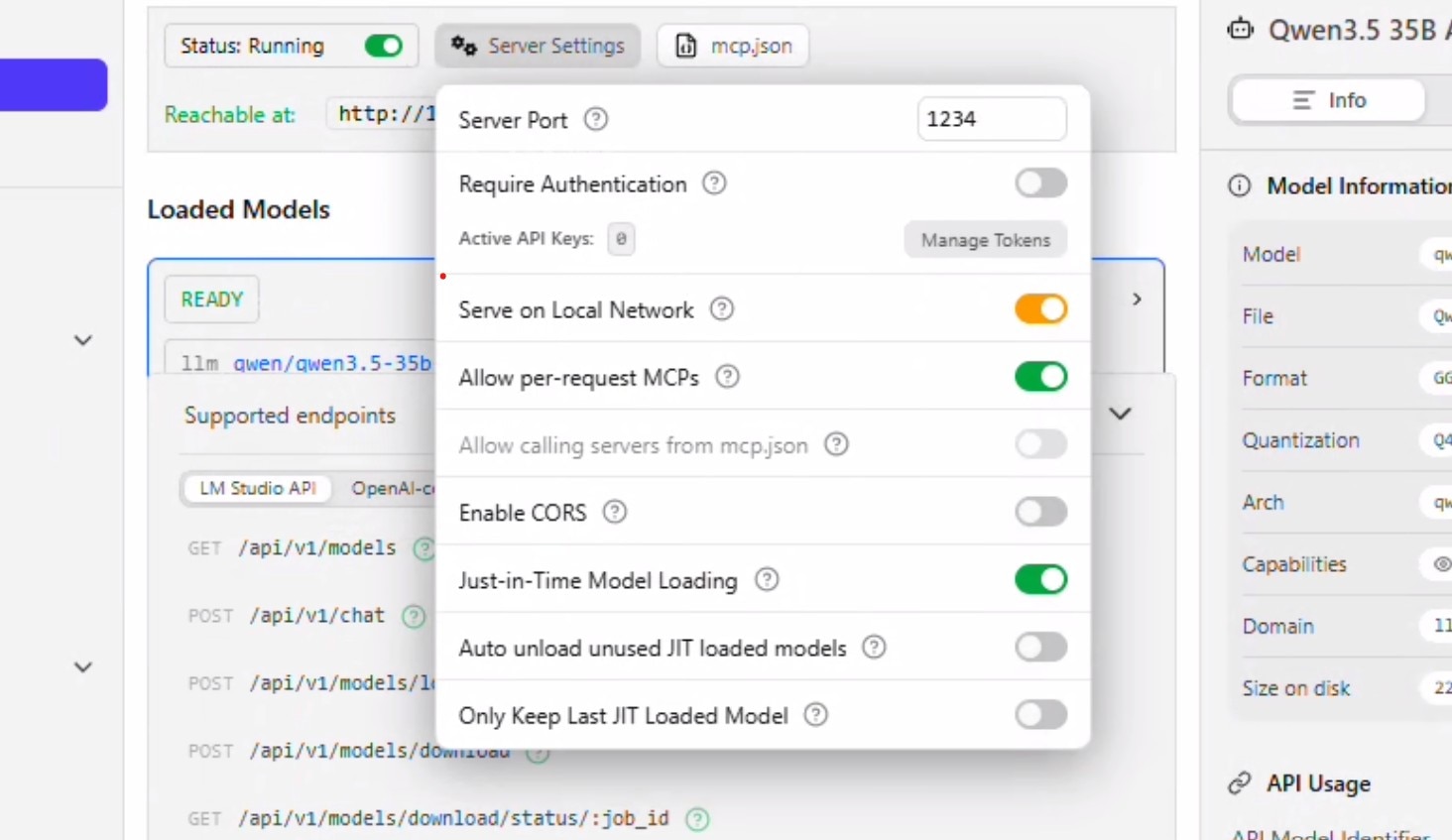
10. Click on Server Settings and set: Allow "Serve on Local Network". You will be prompted for permissions at this point, Uncheck "Auto unload unused JIT loaded models" and "Only keep last JIT loaded model". Click anywhere to close the context window.
11. Click on Load Model. Select Qwen 35B A3B. The settings that we configured above should automatically populate. Click Load.
12. The model should get loaded and you will see the status "READY".
13. Keep this window open and move on.
Installing WSL2 and Hermes Agent
14. Open Powershell as Administrator and install WSL and the distro (you might be prompted for a restart). If you have already installed a distro and want to start with a clean install you can run "wsl --unregister ubuntu-24.04":
wsl --install --no-distribution
wsl --install -d ubuntu-24.04
15. Set a user and password and then run (you might be prompted for the password (sudo) and asked to continue):
sudo apt update && sudo apt upgrade
curl -fsSL https://raw.githubusercontent.com/NousResearch/hermes-agent/main/scripts/install.sh | bash
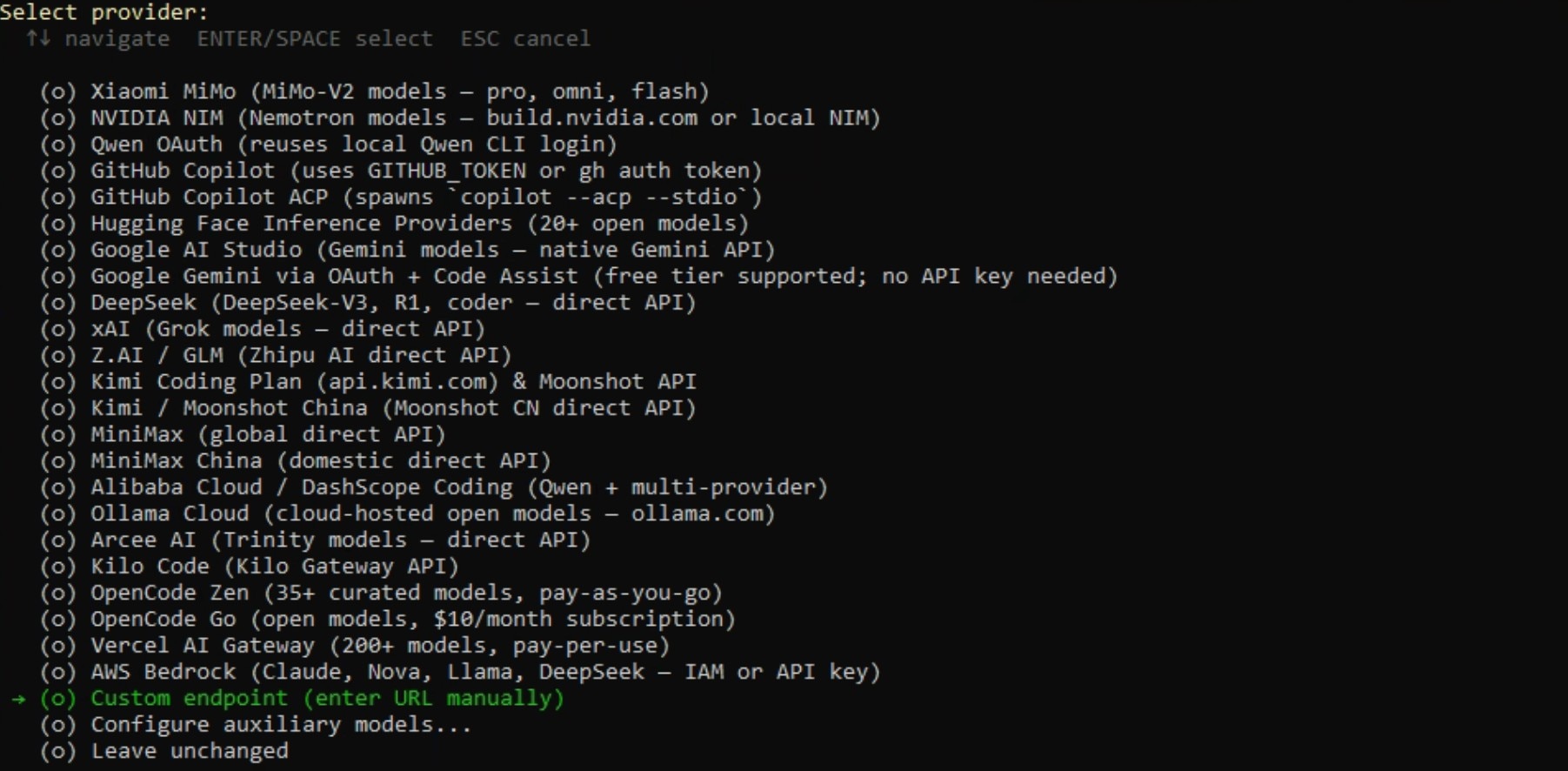
16. Select quick setup and select "custom endpoint" as the provider.
17. Copy paste the local server address from LM Studio (under API usage) and append "/v1" to the end of it.
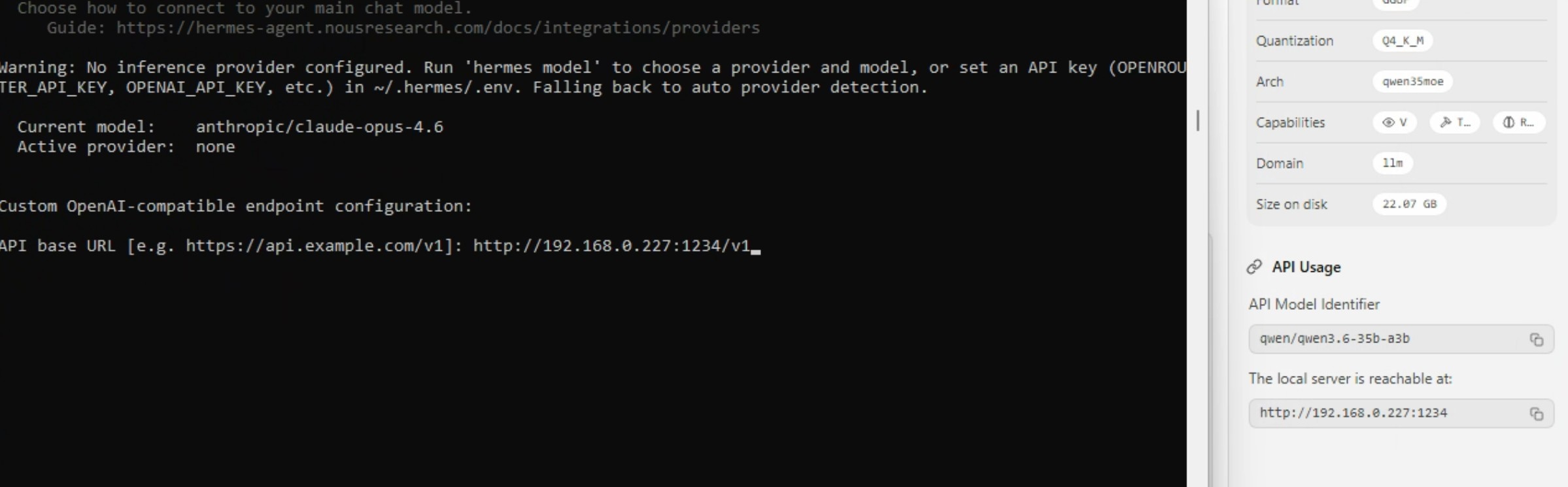
18. For the key just input "lmstudio".
19. Leave context length blank as that will be automatically detected.
20. Give it a name like " LM Studio".
21. Setup any messaging platform if needed and you are all done!
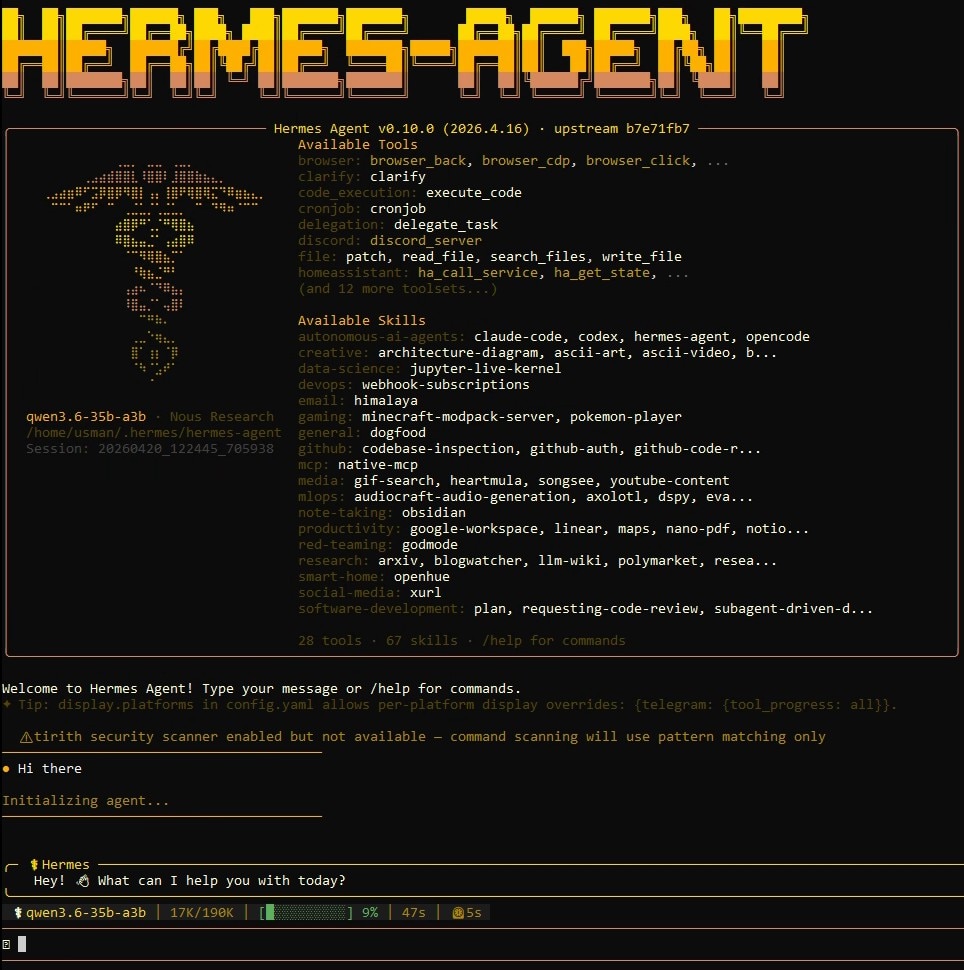
From here, Hermes Agent can expand into live research, web-aware execution, and workflows that depend on current external information. Adding search capability gives the agent access to the live web, which is especially valuable for research, fact-finding, and tasks that require up-to-date context. A practical way to enable that is with a provider such as the Brave Search API (once you have the key - just ask Hermes to guide you through the setup).
For deeper setup guidance and next steps, start with the official Hermes Agent documentation.
Footnotes
Legal Disclaimer: Hermes is a highly autonomous AI agent. Giving any AI agent access to any system may result in the AI acting in unpredictable ways with unpredictable/unforeseen outcomes. Use of any AMD suggested implementations is made at your own risk. AMD makes no representations/warranties with your use of an AI agent as described herein. Failure to exercise appropriate caution may result in damages (foreseen and/or unforeseen). To help protect from any such damages, we expressly recommend the use of the following precautions PRIOR to use of any AI agent of this nature:
1. Run the AI agent on a separate, clean PC that has no personal data, or within a virtual machine. Only ever copy specific data you want the agent to access.
2. Strictly avoid granting access to any of your personal or primary accounts. Instead, create dedicated accounts for the agent and provide only the specific information or permissions required for these separate accounts.
3. Carefully review and limit which skills or extensions are enabled for the agent.
4. Ensure that any interfaces used to access your agentic assistant (such as the web UI or messaging integrations) are protected and not accessible without authorization over local networks or the internet.
Footnotes
Legal Disclaimer: Hermes is a highly autonomous AI agent. Giving any AI agent access to any system may result in the AI acting in unpredictable ways with unpredictable/unforeseen outcomes. Use of any AMD suggested implementations is made at your own risk. AMD makes no representations/warranties with your use of an AI agent as described herein. Failure to exercise appropriate caution may result in damages (foreseen and/or unforeseen). To help protect from any such damages, we expressly recommend the use of the following precautions PRIOR to use of any AI agent of this nature:
1. Run the AI agent on a separate, clean PC that has no personal data, or within a virtual machine. Only ever copy specific data you want the agent to access.
2. Strictly avoid granting access to any of your personal or primary accounts. Instead, create dedicated accounts for the agent and provide only the specific information or permissions required for these separate accounts.
3. Carefully review and limit which skills or extensions are enabled for the agent.
4. Ensure that any interfaces used to access your agentic assistant (such as the web UI or messaging integrations) are protected and not accessible without authorization over local networks or the internet.

Related Blogs
-
RL inside World Models
Explore how failure-aware world model fine-tuning and improved PPO recipes make reinforcement learning more reliable, reproducible, and robust for robotic manipulation.
October 20, 2026
-
Build a Private Cloud with AMD Ryzen AI Max
Enable GPU-accelerated VMs with AMD GPU passthrough, Proxmox VE and ROCm Software
October 19, 2026
-
FP16 GEMM Optimization on AMD RDNA™ 3 and RDNA™ 4 Architectures — ROCm Blogs
Learn how to build an FP16 GEMM kernel with WMMA on AMD RDNA 3 and RDNA 4, one optimization at a time, and approach hipBLASLt performance.
October 15, 2026
-
Day 0 Support for Muse Spark Open on AMD
AMD is excited to announce Day-0 support for Meta’s latest Muse Spark Open model family on AMD Instinct™ MI350X and MI355X GPUs
October 15, 2026
-
Introducing FastFlow SDK
Explore AMD FastFlow-SDK for local AI development on AMD Ryzen™ AI NPUs, from running models to customizing inference and optimizing operators with FastFlow, IRON, and HRX.
October 15, 2026
-
MiniCPM Day 0 Support Across AMD Hardware
Explore Day 0 support for MiniCPM-V 4.7 on AMD Radeon™ GPUs, Ryzen™ AI Max processors, and Ryzen™ AI NPUs for on-device AI inference.
October 14, 2026
-
Kimi K3 on AMD Instinct GPUs with TokenSpeed
TokenSpeed delivers fast, agentic LLM inference on AMD Instinct™ MI355X GPUs, with optimized kernels and leading Kimi K3 performance.
October 09, 2026
-
scikit workloads with AOCL Data Analytics
Accelerate supported scikit-learn workloads with AOCL-Data Analytics while keeping your existing Python code and familiar scikit-learn APIs.
October 09, 2026