OpenCLaw on AMD Developer Cloud: Free Deployment with Qwen 3.5 and SGLang
Mar 16, 2026
OpenClaw stands out because it gives users meaningful control over what their agent can do. Instead of prescribing a fixed experience, it allows you to enable the skills, tools, and capabilities that match your needs and your comfort level. In practice, that means the power of the agent is shaped by what you choose to make available to it.
That design makes OpenClaw interesting not just as an AI assistant, but as a flexible foundation for personal automation. With the right configuration, it can help automate daily tasks, support recurring routines, and turn familiar messaging interfaces into a more capable personal workflow layer.
This blog focuses on a practical way to get started: running OpenClaw for free with Qwen 3.5 and SGLang on AMD Developer Cloud using a single AMD Instinct™ MI300X GPU. It is a straightforward path for developers who want to experiment with a capable self-hosted agent stack on AMD hardware without a large upfront cost.
To address these concerns, this guide demonstrates how to use a powerful open-source model that exceeds the limits of typical consumer-grade GPUs by running it on enterprise data center hardware, specifically the AMD Instinct MI300X with a massive 192GB of memory, at no cost.
Complimentary AMD Developer Cloud Credits through the AMD AI Developer Program
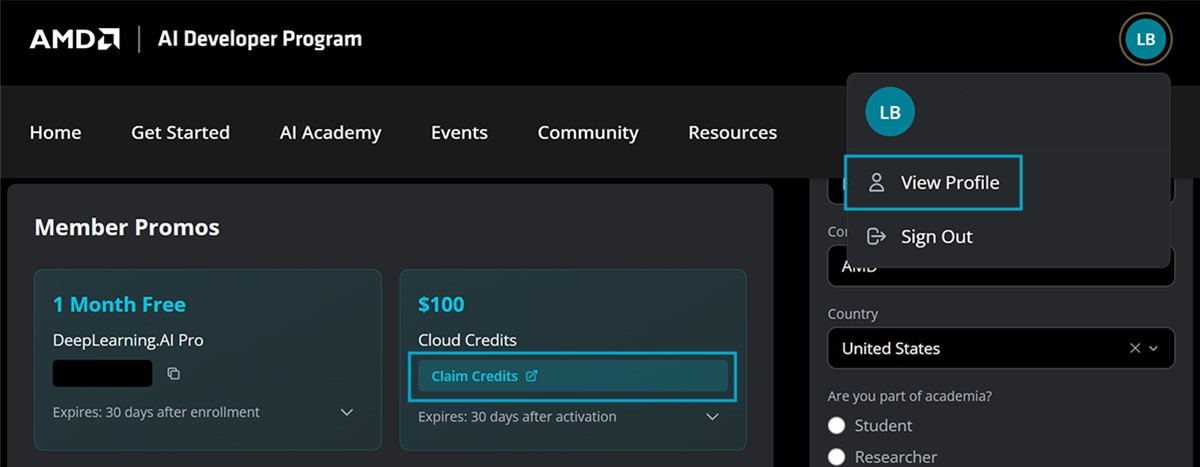
The AMD AI Developer Program provides members with $100 of free AMD Developer Cloud credits, which is enough for approximately 50 hours of usage to get started. Members who showcase useful applications and publicly share their projects may also apply for additional credits.
Beyond the credits, signing up grants you a one-month DeepLearning.AI PRO membership, automatic entry into monthly AMD hardware sweepstakes, and access to free AMD training courses.
Getting Started
Step 1: Sign up for the AMD AI Developer Program
Existing Users: If you already have an AMD account, simply sign in and enroll in the program.
New Users: Select “Create an account” on the login page to set up your AMD account and enroll simultaneously.
Step 2: Activate Your Credits
After you join the program, navigate to the “AMD AI Developer Portal Profile Page" and follow the instructions to get your free credit.
Step 3: Create a GPU Droplet
Once signed in, you will be directed to the Create a GPU Droplet page, where your credits should appear at the top.
- Select Hardware: Choose a single MI300X instance.
- Select Image: Choose the ROCm Software image.
- Configure Access: Add your SSH key (instructions for creating one are provided in that section of the page).
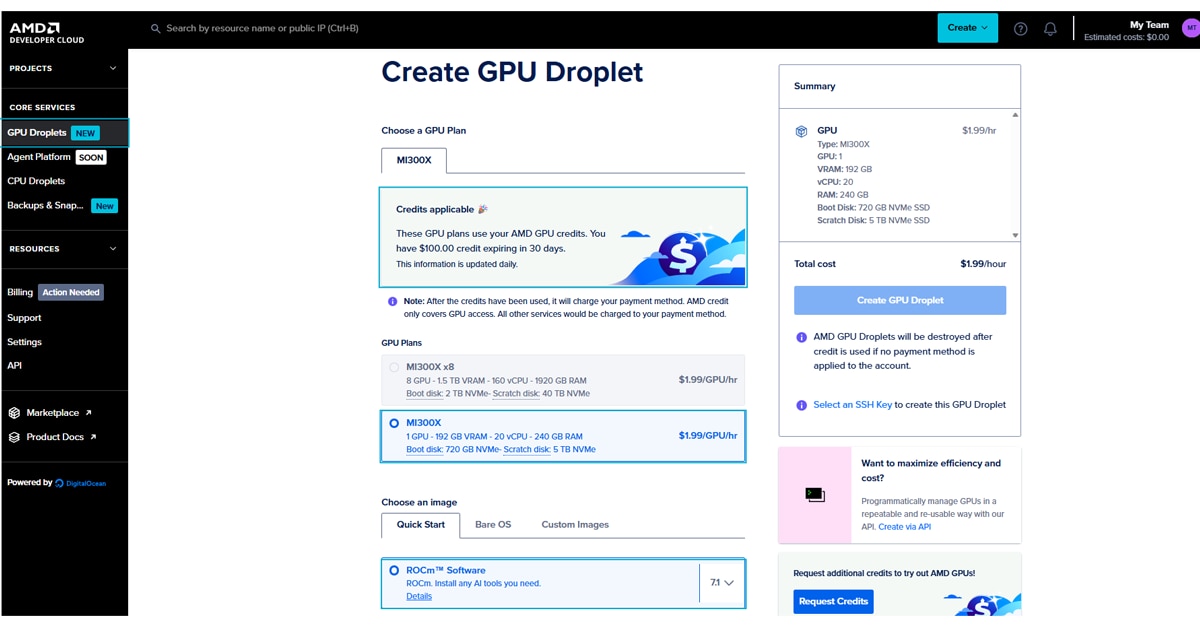
Once the droplet is created, you can access it via your terminal or by clicking on Web Console button:
ssh root@<YOUR_DROPLET_IP>
Running the Model with SGLang
We will use SGLang, one of the most popular frameworks for LLMs, to run our model. The following steps must be followed in your droplet that you created in the previous step.
Step 1: Configure Firewall and Launch
First, open port 8090 to allow traffic to your model:
ufw allow 8090
Step 2: Run the Model in SGLang Docker Container
In this example, we will pull the latest docker image for MI300X GPU and start a container to server Qwen3.5 model. Run the following commands on your droplet to start your model inference:
		docker run -d \
    --name sglang_server \
    --ipc=host \
    --privileged \
    --device=/dev/kfd \
    --device=/dev/dri \
    -p 8090:8090 \
    lmsysorg/sglang:v0.5.9-rocm700-mi30x \
    python3 -m sglang.launch_server \
    --model-path Qwen/Qwen3.5-122B-A10B-FP8 \
    --served-model-name qwen3-5-122b \
    --host 0.0.0.0 --port 8090 \
    --tp-size 1 \
    --api-key abc-123 \
    --attention-backend triton \
    --reasoning-parser qwen3 \
    --tool-call-parser qwen3_coder \
    --trust-remote-code
Note: Replace abc-123 in the command below with a secure, unique API Key.
This server exposes an OpenAI-compatible endpoint that OpenClaw can connect to directly during installation. The address of your endpoint will be in this format:
http://<your-droplet-ip>:8090/v1
Connecting OpenClaw to Your Local LLM
Now that the model is running, we will install OpenClaw and connect it directly to the SGLang endpoint. Recent versions of OpenClaw simplify this process significantly by allowing you to configure the model during the initial installation
Step 1: Install OpenClaw
Run the following command on your local machine or droplet (Mac/Linux):
curl -fsSL https://openclaw.ai/install.sh | bash
This launches the OpenClaw interactive onboarding process.
For all other OS installation options, please check OpenClaw’s official page. During installation, OpenClaw will guide you through a short onboarding process. For a minimal working setup, select the options shown in the screenshots below.
Step 2: Select QuickStart Mode
When prompted during installation, choose: Onboarding mode: QuickStart
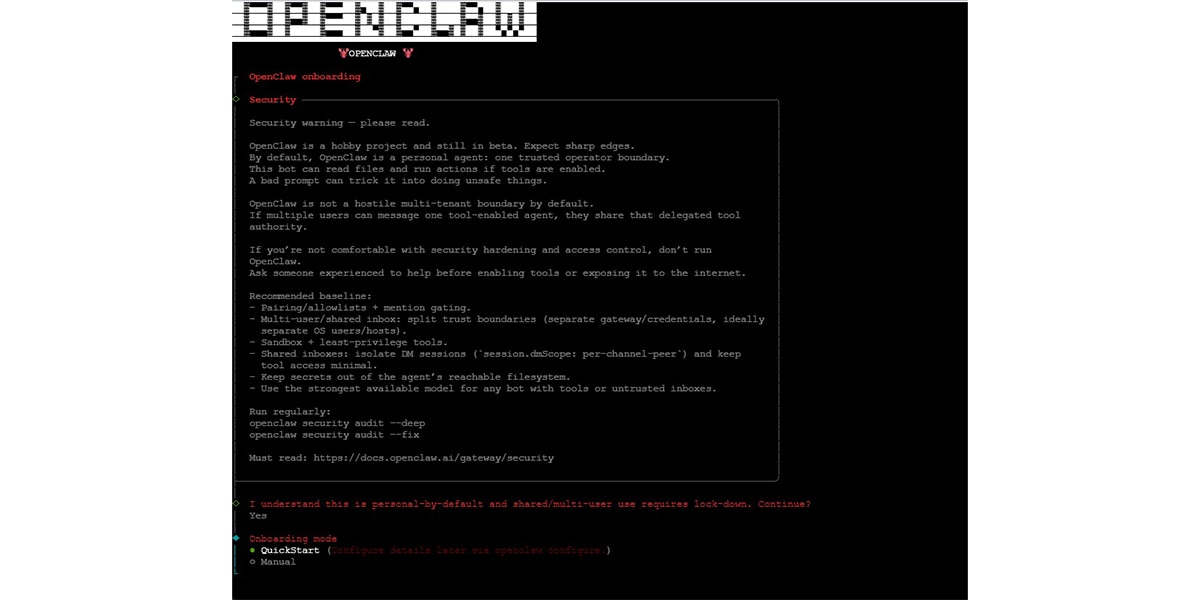
Step 3: Configure the SGLang Model
When prompted for the model provider, select: Model/auth provider: SGLang
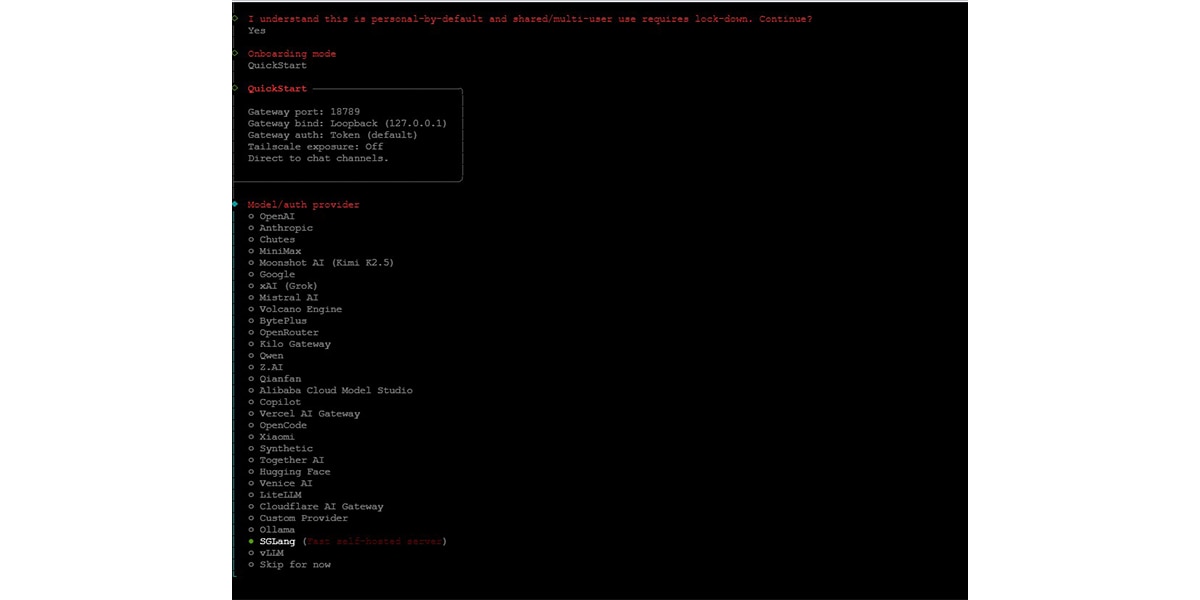
You will then be asked to enter the following values.
SGLang Base URL: http://<your-droplet-ip>:8090/v1SGLang API Key:
abc-123 (Replace this with the same API key you used when launching the SGLang server.)
SGLang Model: qwen3-5-122b (This must match the --served-model-name used when starting the SGLang server.)
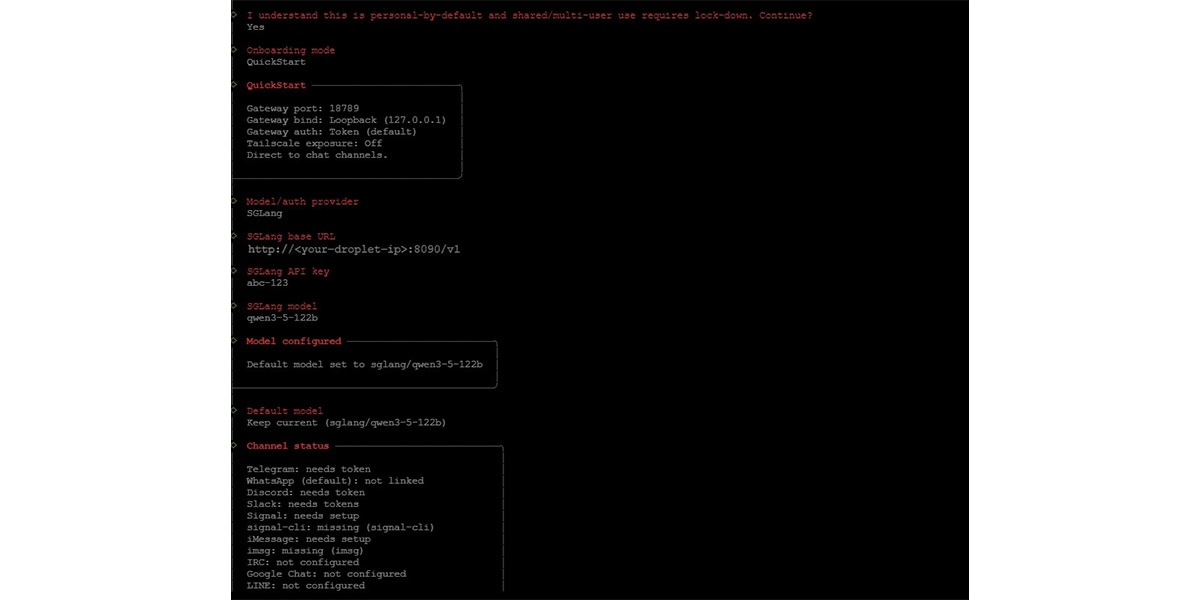
Once entered, OpenClaw automatically configures the provider and sets the model as the default agent model.
Step 4: Skip Optional Features
For a minimal working setup, you can skip the remaining optional features during onboarding:
- Chat channel integrations (Telegram, Slack, etc.)
- Web search provider
- Skills configuration
- Hooks
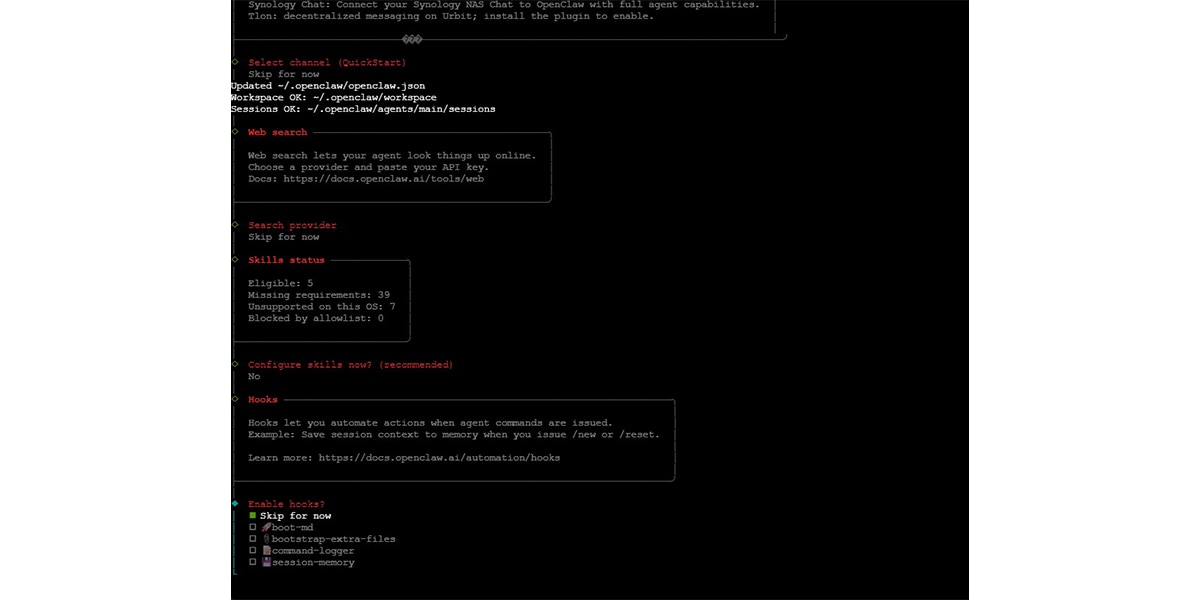
These features can always be enabled later.
Step 5: Open the OpenClaw Dashboard
At the end of onboarding, OpenClaw prints a dashboard link similar to:
http://127.0.0.1:18789/token=<generated-token>
If running on a remote droplet, create an SSH tunnel before opening any links in your browser:
ssh -N -L 18789:127.0.0.1:18789 root@<your-droplet-ip>
Then open in your browser:
http://127.0.0.1:18789/token=<generated-token>
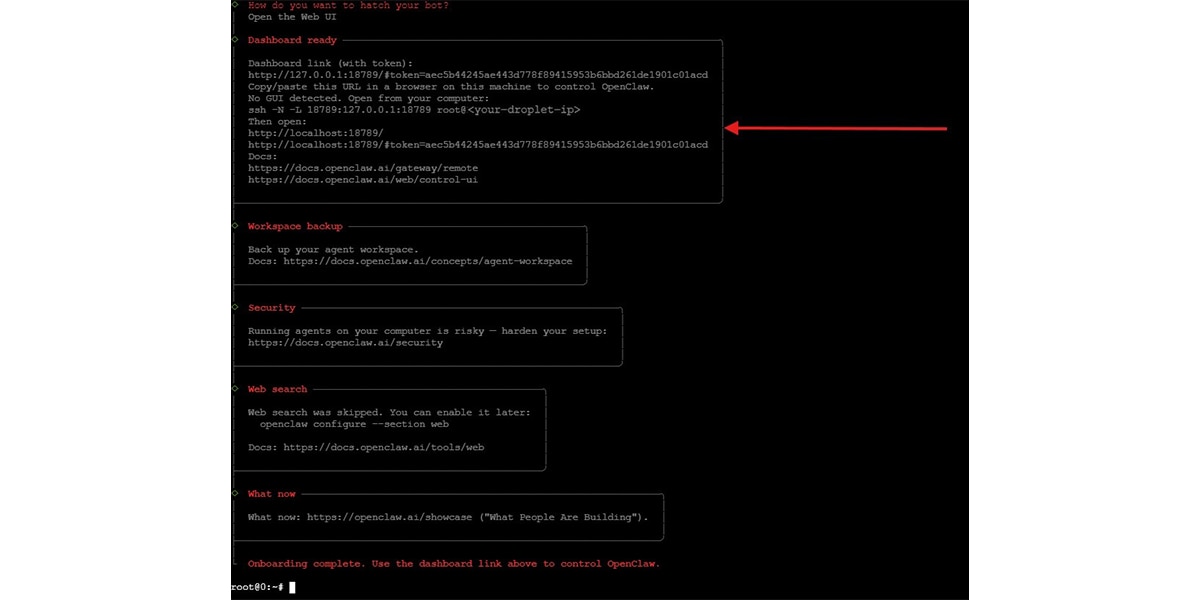
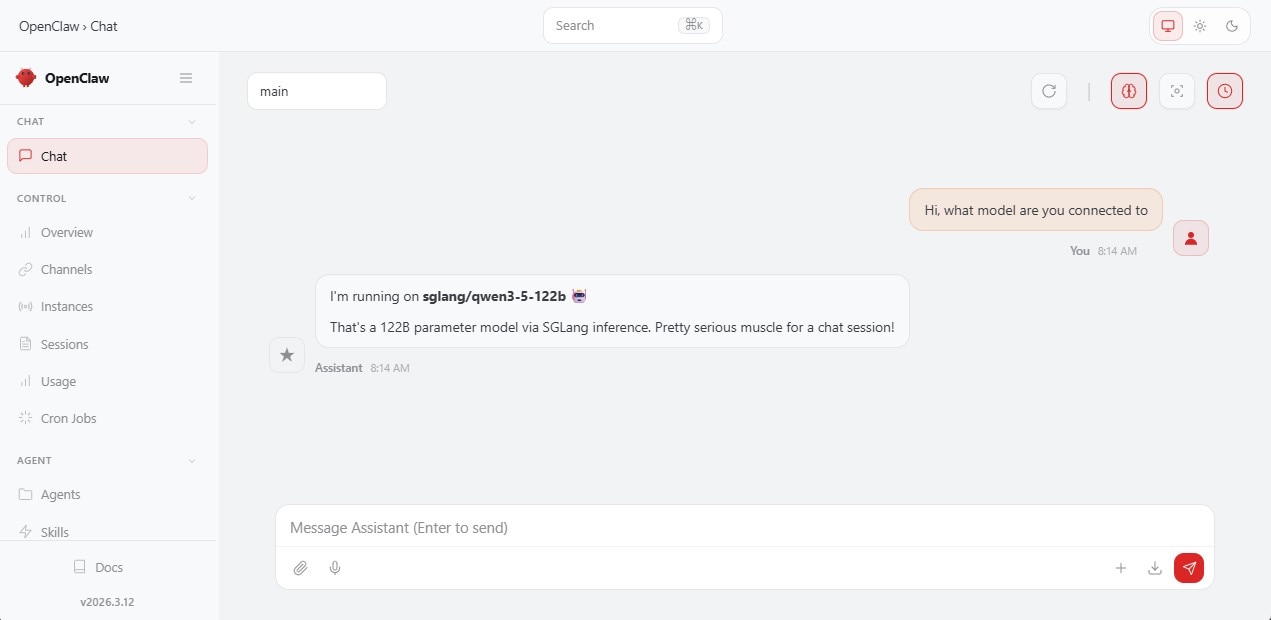
From here you can start chatting with your OpenClaw agent powered by your SGLang-hosted Qwen 3.5 model.
Conclusion
You are now ready to start chatting with your agent running on enterprise-grade hardware. You can use this same method to run other open-source models from Hugging Face. Don't forget to share your projects with the community to earn more free GPU credits. Happy building!

Related Blogs
-
NeuroSpark Expands AI Compute Choice with AMD
NeuroSpark uses AMD Instinct GPUs and ROCm software on OCI to deliver flexible, cost-effective AI training and inference
October 23, 2026
-
Sovereign AI for European Customer Conversations
LeadDesk, QuTwo, and AMD Silo AI collaborate on a sovereign AI stack that brings near-frontier, open-weight models to European customer conversations.
October 22, 2026
-
Micro-World 2: Streaming Real-time Interactive World Model — ROCm Blogs
This blog demonstrates how Micro-World 2 combines precisely annotated action data, four-step diffusion distillation, and ROCm-optimized inference to deliver controllable, long-horizon, real-time world generation on a single AMD Instinct GPU through a fully open-source pipeline.
October 20, 2026
-
MoE Training Optimization with Primus — ROCm Blogs
Learn how to speed up MoE training on AMD Instinct GPUs with Primus: a fused MoE megakernel, FP8/MXFP8 expert GEMMs, and training-at-scale tuning.
October 20, 2026
-
Optimizing World Action Models on AMD GPUs — ROCm Blogs
Speed up World Action Models on AMD GPUs with GEAK kernels, fewer denoising steps, and latent actions, cutting FastWAM latency 25× at about 97 percent success.
October 20, 2026
-
Bringing Ultra-Fast, Interactive LLM Inference to AMD Instinct™ MI355X GPUs — ROCm Blogs
Accelerate single-request LLM inference on AMD Instinct MI355X with megakernels, speculative decoding, and MXFP4 for 1.9-3.3x faster decode.
October 19, 2026
-
From Prompt to Playback: Nunchux Turns AMD Instinct™ GPU Performance into Responsive Video AI
See how AMD Instinct™ MI355X GPUs and AMD ROCm™ software enable faster-than-playback MiniMax-H3 video generation.
October 19, 2026
-
From AI That Answers to AI That Acts
Why physical AI requires a new definition of performance – one built around the whole system, not peak compute.
October 19, 2026